๐ก Unlock your TVโs full potentialโcut cable, keep control, and never miss a show!
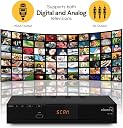
The AT-163 ATSC Digital TV Converter Box transforms your analog TV into a modern entertainment hub by delivering 16+ free-to-air digital channels with HDMI, USB, and coaxial connectivity. Featuring a built-in PVR for recording, pausing, and rewinding live TV, it includes parental controls, an electronic programming guide, and easy plug-and-play setup with all necessary cables and remote control. Perfect for professionals seeking cost-effective, high-quality local TV streaming without cable subscriptions.


| ASIN | B00GGVPKKC |
| Best Sellers Rank | #755,850 in Electronics ( See Top 100 in Electronics ) #65 in Analog-to-Digital (DTV) Converters |
| Brand | ViewTV |
| Brand Name | ViewTV |
| Customer Reviews | 3.8 out of 5 stars 2,801 Reviews |
| Interface | Coaxial, HDMI, USB |
| Interface Type | Coaxial, HDMI, USB |
| Manufacturer | ViewTV |
| Model | AT-163 |
| Mounting Type | Coaxial,Surface Mount,Plug Mount |
| Number of Channels | 16 |
| Number of Pins | 25 |
| Part Number | AT-163 |
| UPC | 848441023727 |
A**E
Surprising! Outperformed my expectations- Great to go subscription free
Update 10 July 2024. I used the box all the way to June 2022, but after we moved to the Louisville Ky area I didnt set it up again. Ive been using the Gen2 and Gen4 Tablo devices. (Tablo boxes require internet connection to function, but if you arent familiar I strongly recomend looking at the Gen4) A few days ago I decided to plug the tuner box in and see if it still works, unsurprisingly it still works just as good today as it did over 10 years ago. Update- April 2020. I'm so glad I have so much OTA recorded content on my HDD. Update- November 2019. Ive relocated to the Pittsburgh Area, and once the TV Antenna was up the box is up and running. Set up my recording schedules and everything is working as it should. Update- 25 August, 2015 I've relocated to Northern Illinois, the box just keeps working, and it has proven to still have a better tuner than my TV. Update- 13 May, 2015 Still working without issue. Update- 23 May, 2014 I am still satisfied with the box. It is still running without significant issue. I give it a double-plus-good rating. Update- 29 January 2014 The box has been running everyday, recording about 6 shows a week, and a fair amount of time-shifting too. It is sitting on top of a Satellite receiver which is warm on its own. The box is still working without issue. If you decided to buy this- read my review first anyway, I promise I have covered many details that are not in the manual. Details that will drive you nuts until you figure them out on your own. For the price this is a remarkable little box. Overall everything is simple enough that you can unbox it, hook it up, and have it running in a few minutes without the manual- which is actually good because the manual does not have any set-up instructions. On page 8 there is a wire connection diagram- some people may find this useful but most will probably find it more confusing than helpful. The remote is basic, and barely meets the requirements. Some keys are marked with icons we are familiar with, others lack those icons, namely the PLAY, PAUSE, and STOP keys. The keys are labeled clearly, they are just missing the familiar icons. The remote is a fairly narrow beam IR, so you can't expect the same performance as some of the high-power broad angle IR remotes (like DirecTV) or the be-anywhere performance of an RF remote. Just have a clear line of site within 25 feet and 30 degrees. The box has independent hardware keys for Power, Menu, OK, VOL -/+ and Channel -/+. The box also has a display that shows channel numbers- however these are the numbers of the memory positions that the box has stored the scanned channels into- these are not the actual broadcast station numbers. (Added 29 January 14) I have replaced the remote with a "learning" universal remote. By "learning" I mean the kind that you use the source remote to teach the universal remote what to do when you push the keys. You can program any key function into any key- which makes using this box a lot better. The universal works so much better, I can't emphasize it strongly enough. The original remote really started to annoy me. (Added 23 May 14) Some people have asked about "Universal" remotes. Most "Universals" get programmed by telling the remote a code that allows the remote to "emulate" the original manufacturer remote. Unfortunately I haven't found any "Universals" with a Viewtv code. I've heard that a certain high dollar brand might work- but I'm not trying to spend twice as much (or more)on the remote than I did on the box! Over-The-Air broadcast viewing works as expected. The digital OTA(Over-The-Air) tuner is slightly more sensitive than the tuner in my TV. (Added 23 May 14) That means that at my house with an amplified rooftop antenna pointed directly to the broadcast antenna location I get a few more channels on the box than I do with the antenna connected directly to the TV. OTA reception has a lot of variables. I live less than 10 miles from the broadcast site, but I am in a terrain shadow (I am behind some big hills.) The key point I can make is that this box tunes all of the broadcast stations available in the area- my expensive TV's tuner doesn't do that. The video quality is every bit as good as I could expect. Using HDMI connection looks as good as expected, using composite cables also delivers a good picture. Using the built-in RF modulator to output over channel 3 or 4 doesn't work with modern digital tuners- I no longer own an old TV with an analog tuner so I can't test how this works. Under MENU/ Channel Search/ Modulation you can enable "Loop through" which will allow you to watch one channel using your TV's digital tuner and record another using the box's tuner- you won't need to use a splitter inline before the box. The menus are responsive enough- they are not instant fast, but I have seen slower on big-name boxes. Pressing the OK key during regular viewing will show you the channel list. You can edit your channel names under MENU/ Program/ Program Edit. If you get bored there are games like Tetris, Snakes, and Reversi- also found in MENU/ Program/ Game The EPG (Electronic-Program-Guide) is decent. Since EPG is embedded in the ATSC broadcast signal (along with time data) I find it amusing that the box displays EPG info even though none of my TVs do. That being said- if you are familiar with cable and satellite on-screen program guide be prepared to be disappointed- so manage your expectations- there is a reason that Tivo has a subscription fee. This is not Tivo, but it does provide an onscreen guide of upcoming programming and the ability to set scheduled recordings with just a few clicks. The scheduling functions are basic, but you can set daily or weekly repeating schedules. It will warn you and prevent you from setting overlapping recordings. I feel the most obvious function missing is EPG full grid guide, the program list is displayed by channel. You can't see what is on multiple channels in the same time slot. Be aware also that viewing the guide for a channel actually changes to that channel, so there is a limitation here. If the box is in time-shift, playback, or currently recording it will not allow you to go to the EPG. So make sure you have scheduled your recordings before the box starts a scheduled recording. (Added 23 May 14) SO far my single greatest complaint, and honestly it is a minor annoyance, I wish it allowed setting a label for a recording when setting up a scheduled recording. Scheduled recordings are labeled by channel name and timed/date. It is possible to re-label the recording AFTER. So I keep a 3x5 card handy to remind me what shows I record by channel, time, and day. (Added 29 January 14) I've had recordings fail with scheduled recording if I didn't set at least one minute difference between the end of one recording and the beginning of the next. I've found that the least amount of key strokes to do this is change the start time to 1 minute after. It seems that every show starts with a review of previous episodes anyway... Once I started using the 1 minute after method it hasn't failed a recording. I plugged a 128GB USB flash drive in and tested the time-shift capability, it works as expected. To start time-shifting you press the PAUSE key- you will get the message "entering time shift, waiting"- then press the PLAY key. The manual does not describe this correctly. While time-shifting the OSD shows on the bottom of the display, press the EXIT key to hide the OSD, press the INFO key to recall it. (Added 29 January 14) Use the biggest USB Flash Drive you can afford. The video format at full HD runs nearly 7Gb per hour. If you had one of these in the living room and the bedroom, you can easily pull the USB storage out of one and stick it in the other to watch shows you've recorded. Call it the low-tech-hopper. One detail I find unusual is that while fast-forwarding during playback of a recording there is no OSD showing relative position in the playback. While the box is recording you will have a recording OSD in the top left corner of the display- press the EXIT key to hide the OSD, press the INFO key to recall it. On many laptops I have to use 2 usb ports to power an external harddrive (spinning disk type), but this box provides enough power through just the single USB port. The drive had multiple partitions both FAT and NTFS- all partitions show up. You can adjust the time-shift buffer from the default 1GB by increments of .5 GB up to 4 GB, you will find this setting under USB/ PVR Configure/ Record Device/ Timeshift Size. (Added 29 January 14) Use a flash drive. The box will time-shift to a external hard disk drive, it will play back your movie collection too, but I have had it fail scheduled recordings with the hard disk drive- even when I observed the 1 minute after rule mentioned above. After a little experimentation, and time staring at the box, and listening to it in operation I believe it is due to the time it takes for the hard-drive to spin up. When the scheduled recording kicks in the box spins up the hard-drive, but if the hard-drive speed is a little slow the box detects that the drive is not ready so it aborts the recording. You might have a different experience with a better external hard-drive. My recommendation is to stick to flash media- with no moving parts or spinning disks it gives better assured performance. Pressing the USB button on the remote will take you to the USB menu, then select the PVR icon and look for a folder called HBPVR to find your recordings. The recordings are named according to station call-sign/ date/ time. A menu appears across the bottom of the display that indicates which keys on the remote do what function. You can delete /rename files from this menu. To play a recording you have a few options. You can press the OK key to select the file and it will start playing the recording, or you can press the PLAY key, you will be presented with a choice to "StartResume", press the OK key to resume a previous playback or press the EXIT key to play from the beginning.fast-forward in the preview and see the relative position as it fast forwards, then press the HOLD key to go full screen. The video files played without issue on my Windows 8 laptop using VLC. I've been building my own HTPCs since TV capture cards have been available. I've been using DVR/ PVR appliances and applications since the first Tivo and since DirecTVs original UltimateTV. I've used MyHTPC, MythTV, BeyondTV, just to name a few. I currently subscribe to a satellite provider and use their whole home DVR, It is a good product- but for a subscription free system this device has me impressed. It performs as well as most mentioned above, and better than many. It has a few shortcomings- but nothing that I would consider a deal breaker. The only detail unknown (and only time will tell) is how well the box holds up. Overall this box performs solidly, far far better than I expected for such an inexpensive purchase. This box doesn't have some features that I would like to have: grid EPG, more than 1 USB port, ethernet or wifi, dual tuner recording, capability for an internal hard-drive. These are nice-to-haves, and most of these features are available on other units that cost 3 to 5 times as much. At this price point- the only reason you will be disappointed is if you have unrealistic expectations. I would highly recommend this product for anyone who has OTA television available.
R**B
Basic Operating Instructions
This is an excellent unit when connected to an external self-powered USB 2.0 hard disk drive. All operations (although not intuitive) work smooth and so far have been trouble free. A USB flash drive (tested several) is not large enough nor have sufficient data transfer speed ability for smooth operation. A USB powered hard drive stresses the units power supply and many have experienced premature failure using these drives. Also, the unit will not benefit from USB 3.0. This is the single biggest issue with these type of PVR units. My elderly mother is using this, so I composed basic user instructions that others could also benefit from. Please like this to keep it at the top of the list for others to benefit from too. Basic things to remember: EXIT takes you backwards 1 step and will be used often. The VOLUME controls on the remote are dependent on the volume set with the TV. If the TV volume is set to 0, the PVR remote will not change the sound. If the PVR remote is at full volume and the sound is too quiet, the TV remote must be used to increase the volume more. All times are based on 24 hour clock, so 8:00pm is really 20:00 Aim remote at PVR box and press button firmly. If the button did not seem to do anything, wait a few more seconds before pressing it again or the next button. DO NOT press a button a bunch of times. If the PVR freezes on a screen for a few minutes, try pressing the power button on the front. If still nothing happens, switch the power off with the power strip, wait a minute then turn the power strip back on. (Don't have the hard drive plugged into this power strip) Any timed recording supersedes a program you are watching live or from the DVR. The recording mode will begin whether the unit is on, in standby, watching a time shifted live program or watching a recorded event. How to record a show in the future (like an old VCR) 1. Turn on TV and set input to PVR 2. Turn on PVR 3. Press TIMER button 4. Press 1 to add a new timed program a. If you want to EDIT an existing program, use the direction keys to highlight the program and press 2. b. If you want to DELETE an existing program, use the direction keys to highlight the program and press 3. 5. Using the arrow direction keys and select the item to edit it. 6. When changing the date or time, use the arrow keys to get to the number you want to change, then use the number keypad to enter the new number. After pressing the first number, the underline automatically moves to the next one. 7. Once all data is entered and correct, press the OK button to confirm, then press EXIT to return back to the previous screen. If you are not going to use the PVR to watch TV, press the POWER button to put the unit into standby. How to record a show TONIGHT (program guide) This is useful if you want to record something at 11pm but do not want to stay up for it. It is also useful if 2 shows you want to watch are at the same time. Record one with the PVR and watch the other with the TV set to TV input. 1. Turn on TV and set input to PVR 2. Turn on PVR 3. Press EPG (Electronic Program Guide) button 4. Use the arrow keys to select the correct channel shown at the top of the screen 5. The guide will populate more items as they are received from the airwaves. 6. Use the arrow keys to select the program you want to record 7. Press OK to confirm selection, the OK to confirm recording. Press EXIT then POWER to put unit into standby. Change the TV input back to TV if you want to watch a live broadcast while the PVR records another channel. How to Pause live Television (skip commercials!) This is useful if you want to fix a bite to eat, use the bathroom or so something else while and later return to the program and skip over the commercials. Remember that you canโt fast-forward past live TV. 1. Turn on TV and set input to PVR 2. Turn on PVR 3. Set the channel with the channel keys 4. At any given point you want to pause the program, press PAUSE key. A slight delay will occur while this puts the PVR into time-shift mode and the picture pauses with the time bar shown below. To remove the time bar from the screen, press INFO. a. While in time-shift mode, you can fast-forward FWD or rewind REV from the point you first paused the TV up to live TV. Press PLAY to resume playing at the selection point. b. Each subsequent time you press fast-forward FWD or rewind REV the speed goes faster, from 2x to 4x to 8x etc as displayed on the top of the screen. Press PLAY to resume playing at any point. c. If you change channel, the PVR will cancel the time-shifted recording in memory. 5. Press the STOP key to cancel the time-shift and stay on the channel. How to watch a recorded program The recorded files will have a name that shows the channel, date and time. Since your show may not be obvious you can play it on this same screen including fast forwarding. 1. Turn on TV and set input to PVR 2. Turn on PVR 3. Press the PVR LIST button 4. Use the arrow keys to select the a program and press OK to start the playback 5. If this is not the correct show, use the arrow keys to select a different one and press OK 6. If the show on the mini screen is the one you want, press the HOLD key to display it as full screen. 7. Use the PAUSE, PLAY, fast-forward FWD or rewind REV to skip around commercials. 8. To delete a program, return to the PVR LIST view, select the program you want to delete and press EPG. Confirm selection with OK, and then confirm the deletion by pressing OK again.
R**H
Excellent low cost Tuner and DVR recorder
The tuner works great with an antenna, with clear reception on high def channels. The digital recorder, which the manufacturer refers to as "PVR", is what really is satisfying. You can pull up upcoming shows by channel, select the show you want to record, and specify f you want to record it once, daily or weekly -- it is that easy. If you want to see what you recorded, you can display the PVR list. I have had the box running for days, and it is only slightly warm to the touch. I'm recording onto USB 2 flash memory, which works well with high def. A one hour high def show can take 4 GBs, where 1 hour at low def takes approximately 1 GB. Another nice feature is that I can download my recordings to my computer (MAC) and review, rename or review each there, then copy these back out to flash card fir viewing on the Viewtv box. This is an excellent functioning and low cost ATSC Tuner, DVR and full function remote; how do they do it for only $39.99? I was so impressed with this unit that I purchased a second one. Update: What the instructions don't tell you: 1. The box only has a USB 2.0. It does not support USB 3.0 2. Press the "info" button once on your remote, and it displays the channel/station info, but you have to press The info button a second time to display the station strength meter. 3. Recorded output is in the form of a .mts file. After approximately 4.29 GB of recording, the ViewTV cuts a new output file under the same name, but with an extension of .mts1, and then .mts2. If needed. 4. On the Mac, the QuickTime player will play a .mts file, albeit occasionally it will hang up. Even though it may hang up on the Mac, it is still usable on the ViewTV. My QuickTime player can't handle a .mts2 file, but again, for large, multi-file videos, I use the ViewTV. Incidentally, you can rename your files on your computer and then download to your USB thumb drive. 5. Finally, I use high speed flash memory cards in a USB 2.0 flash reader. If you use a USB 2.0 Thumb Drive, make sure it is at least 40 Mbps speed in order to record in high definition. I have absolutely no issues at 40 Mbps. 11/03/17 update: it is still worker great for recording OTA content. Iโm using SanDisk USB 3.0, 32 and 64 MB thumb drives purchased inexpensively at Amazon. Note: plug the thumb drive into a Samsung TV USB port, and the recorded video contents can be displayed directly and easily on the TV, obviating the need for the ViewTV box for playback.
A**R
DO NOT BUY ANY VIEWTV MODEL
Do not buy Viewtv AT-300 or any version of Viewtv. I just bought AT-300 in April 2020 and returned it. Keep reading. Currently, I have and am using Ematic (x2), IView (x1), and Viewtv AT-163 (x1). One for NBC, one for ABC, etc. Do not buy Ematic unless you know it is greatly improved recently. I have an older version of ematic, so based on that I chose not to buy another one even if it's been updated/fixed, which I don't know if it's been updated/fixed in the past 5 years. IView 3500STBII is pretty good (Bought Sept 2019), so is OK to buy, because it has specific features others don't, if that is specifically what you need. I just bought Ubisheng U-003 June 2020. And, I'm keeping it. Read the ending of this review about it. I bought my Viewtv AT-163 June 2019. I thought it was the best of my 3 brands, so I bought another Viewtv. The AT-163 June 2019 version is virtually flawless. Is very good. After buying the viewtv AT-300 (April 2020) and finding out how messed up it is, I bought the viewtv AT-163 (May 2020), but the new AT-163 is just as messed up as the AT-300. So, both new AT-163 and AT-300 are both messed up the same. Bought April 2020 (sent back to company) Info from the software of the box shown on the screen for AT-300 Model: ATSC SW Version: Jan 3 2019 10:03:18 HW Version: 7802-ATSC-18 Bought May 2020 (sent back to company) Info from the software of the box shown on the screen for AT-163 Model: ATSC SW Version: Oct 30 2019 14:55:32 HW Version: 7802-ATSC-03 Bought June 2019 (I've kept it and am keeping it and not updating it, because it's pretty good as it is.) Info from the software of the box shown on the screen for AT-163 Model: AT-163 SW Version: Oct 18 2018-11:50:10-v5 HW Version: ABL7802-R836-A Website info says for software update: ViewTV AT-300 Firmware Update (SW: Oct 28 2016) Downloaded file name says: usb_upgrade_all_Oct162018_AT300.bin So, is it 2016 or 2018 update? I ran the update from the website and it didn't change anything. Even though the software version of the box is 2019, I wanted to go back to an earlier version to see if it is better, but it would not go back to an earlier version. So, the latest/greatest is worse than an earlier version. I don't know why developers/programmers make a newer version worse. They are only supposed to fix problems and add new features, not take away features/options. I've had other software (nothing relating to this) that came out with a new version that was worse than the old version with nothing new, just changed the looks and removed features. Why? Programmers! Frustrating! Don't remove any features, ever. Someone wants that feature even if it is just one person. Never remove, only add. AT-163/300 problems (bought April/May 2020) (Again, do not buy) Whether the time setting is set to auto or manual, when I turn off/on the box, then it goes back to the wrong time. Auto means that the time will always be wrong. Manual means I can set the time myself, but every time I turn off/on the box, it goes back to the wrong time. I'm not going to reset the time every time I power cycle the box which is every day. That's just stupid. Even though I am Arizona/Mountain time, it goes back to Eastern time, 2 hours ahead. That is a real problem. The box software is missing the choice for the time zone, so you can't select which time zone you are in. If it's supposed to select automatically based on the signal from the TV station, it is not doing that. So, it's broken. My good AT-163 (June 2019 version) is on auto, has the option to select time zone, and gets the correct time from the TV station signal and works great. There is no difference of the remote control on the AT-300. Except the font size is bigger making the characters easier to see. At least that is a good thing. The time on my good AT-163 shows on the box display, but only the channel shows on the box display of the AT-300, not the time. On my good AT-163 it will show the channel on the box display and after a short amount of time, it will revert back to show the time all the time. The time does not show on the box front display panel of the AT-300. I figured out in order to set the time for the box to be correct on the new AT-163/300 (a workaround), I selected the country as Canada and time option as Auto. The default country is USA, so it was already on that. When I changed the country to Canada, then it shows the correct time for me in Arizona. The only concern is that Arizona never, ever, ever, ever, ever, ever, ever, ever, ever, ever, ever, ever, ever, ever, ever, ever, ever, ever, ever, ever, ever, ever, ever, ever, ever, ever, ever, ever, ever, ever, ever, ever, ever, ever changes time. Never. Therefore, I don't want to have to change countries every six months to accomodate for daylight savings time that Arizona never, ever ... has to worry about. Not having the Arizona option is a problem. Daylight savings time is not something I want to worry about, since it never, ever... concerns me. The problems I described is not a whole lot of problems, but the problems are huge problems. Therefore, to me, the boxes are broken and not usable. So, I sent them back and bought another brand. I bought Ubisheng U-003. It is pretty good. There are a couple of minor nuisances, but no major problems. At first I was afraid there wasn't a 24 hour option for the time format, but the box is 24 hour time format by default. Therefore, you have to understand that 1900 hours is 7pm. You can't change it to 12 hour format. 24 hour format is a requirement as far as I am concerned, so that is a good thing for me. One of the more prominent minor problems is the display channel. For NBC in Phoenix, AZ, it is identified as channel 12. The box display and the recording set say channel 21. It counts channels as 1,2,3, etc. The channel number in my area starts with channel identification number 3. Therefore, since there are channels 7.1, 7.2, 7.3, 7.4, etc, then channel 12 is number 21 on the list of channels and 15 ABC is 25, etc. However, on the screen display, the OSD, it shows channel 12, NBC, properly as 12.1. A minor nuisance. On the remote, I press 12.1 and it goes to NBC as it should. I do NOT have to press 21 for NBC. My good Viewtv and Iview don't do that. They show 12.1, 15.1, etc. on all menu options and all OSD concerning channels. Ubisheng is good enough, so I'm keeping it. So, Ubisheng is OK to buy as long as you know that 1800 hours is 6pm, etc. Most people don't know 24 hour format, but I do and it is a requirement for all my clocks, so that feature is awesome to me.
P**R
Exactly what I was looking for!
This unit is not perfect, as others have pointed out, but it really is exactly what I was looking for. Here is my criteria: 1. Must be able to pull in weak signals from an outdoor antenna - Check. 2. Must have HDMI output AND Component outputs - Check. 3. Must have the ability to force the HDMI resolution to 720P - Check. 4. Must be relatively inexpensive - Check. I have had several external HD tuners over the years (first to feed an HD monitor, and then a projector), and all have konked out or had various issues. My latest tuner works fine for most stations, but then failed to receive the local Fox station that should have been no problem. So all I was really looking for was a good, solid tuner, that just works. I don't need the recording functions so I haven't even tried that part. There are three ways I use this unit. One is to feed the TV, so I use a short HDMI running 1080P for that. The second was is to drive a projector that has a long HDMI cable run. And with that run, it sometimes streaks when I try to push 1080P, so I drop it back to 720P for that, since the projector is only 720P anyway. Then it works perfectly. Third, I sometimes host a superbowl party with my projector at a different location from home, and when I use even a short HDMI cable, I sometimes get dropouts (the jack on the projector is most of the problem, as the cable has to be connected just right). So for that, I use a component cable since it is rock solid and never drops out (and no one can tell it's not digital from 30 feet away). As others have noted, this unit does have some quirks, but I expected that based on the cheap price and being an off-brand. But I expected that it had some good modern chips in it, and that it my work for what I needed, and that turned out to be true. The user manual is awful, of course, and the front panel shows a sequential number for the channel number instead of the actual channel number (there may be a setting to make it show the channel number, but I didn't find it). The online program guide is actually pretty good compared to other units I've had. The interface to set up recording appears a little clunky, but I haven't actually tried that yet, and don't plan to. And note that to record you do need an external storage device of some sort. When I went to set it up on my Harmony One remote, the manufacturer was not listed, so I had to set it up manually, which still wasn't too bad with the Harmony interface. So, if you're looking for a super do-all device that is easy to use, this is not it. But if you have specific requirements as I did, it may just be the perfect unit for you.
M**E
SOME BIG FLAWS!!
OK where to begin. . . . . . . . First off ,I didn't expect much from the unit and I just wanted to be able to record, pause fast forward, and rewind! ALL I CAN SAY IS DON'T FAST FORWARD FASTER THAN 2X OR THE UNIT WILL FREEZE AND YOU HAVE TO DISCONNECT THE POWER!! Second: the picture will just go out and I believe it's because of the hdmi cable or port! THROW THE PROVIDE HDMI CABLE IN THE GARBAGE! I put one of my hdmi cables in there and it seems to have stopped ,but if the port is messed up I can always run component cables to my tv from this box, WHICH COMPONENT CABLES "green,blue,and red cables" IS THE SAME THING AS HIGH DEFINITION AT 1080P, BUT ALOT OF PEOPLE DON'T KNOW THAT, and you may have to adjust color settings on tv if you use component, but it will look just like the hdmi! The the hdmi cable was to eliminate the five component cables into one single cable GIVING THIS BOX SOME CREDIT: this box does work pretty good and I can pause, I can record, rewind and fast forward but only fast forward at 2x speed , which is one click for fast forward. Another issue is this box doesn't have a internal clock, it reads the clock coming from your stations , which. . "Me chuckling to Myself" . .is a mixed bag of times for each channel. .one channel is says it's 825, when it's really 855, WHICH IS A PROBLEM WHEN YOU CLICK "record this program that starts at 9 o'clock because it will be thirty mins into the program, so you have to do some math in order to record on time! LET ME BREAK THE TIMES DOWN: ALL THE channel 4's are twenty eight min early, all the channel 9's are seven min fast, and all the channel 27's are two min fast. . .so as you can see there is a learning curve to this box, and don't give up! WOULD I RECOMMEND? i don't know but I am happy with it . .IT'S 35 DOLLARS AND PERFORMS GOOD FOR THAT PRICE!! Ps:four days in and doing OK, if you mess with menu settings over and over it will get buggy but after the setup it's working fine, I recommend!
J**Y
Exactly what i was looking for
Operates as advertised, but a few kinks. 1. My intention was to use this on the TV in my basement so I wouldn't have to have it on my main TV, adding yet another box on my entertainment center. The plan was to use it to record, and then carry the recording on the thumb drive to my Western Digital Media player to watch. As it turns out, the DVR records in "blocks" of 511 megabytes, so recording the 24 series opener gave me 25 files. Only the first file was named with a ".mts" extension. That one plays fine. All the rest of the files are named ".mts1" ".mts2" ".mts3" and so on. So, to play each of the files on any source other than the DVR, I had to rename all the files to ".mts". 2. File naming. The recorded files only show the station ID and time stamp. It makes no sense to me that if there is an electronic program guide and the ability to rename files manually (both of which work great by the way), why the unit can't name the recording using the name of the show. 3. Clunky remote. I'm never lost because the on-screen prompts that show what you can do, but seriously, why would I press "hold" to go full screen? how about a button that says "full screen" or something intuitive. I bought this as a test for my Mother in Law, and she will eventually pick up on the visual cues, but it needs to be made more user friendly. All in all, a good buy. I'll probably be buying another one shortly. Update 5-13: I gave it another go with a faster USB hard drive, and this time, the entire program recorded in one file. It would be nice to know why. I can only speculate as to why. I hope the manufacturer is reading this. Anyway, MAKE SURE you have a fast flash drive. My original USB drive gave hiccups every few seconds. Now it works fine. Update 1/21/16: unit has been having issues for a while now. About two months ago, the coax input quit working, so I had to eat up an HDMI port to support it. It quit turning on with the remote, although turning off and all other functions were fine. It has frozen up a couple of times in the last week or so, and finally just shut off with no sign of life. I still recommend this device. I bought it on May 3, 2014 for 59.99. That is still less than one month of service with any cable provider and has provided me nearly two years of good service. I just ordered another one to replace it, and now they're 32.99. Good going ViewTV :).
C**S
It Works!! Somewhat?
First of all i have to say that I am using this with an over the air antenna going to a Samsung smart hdtv. I can't say how this would perform with an older analog tv. For my setup it works great. The picture through the built-in tuner is every bit as good as my tv set alone. I am using a splitter without any degradation of the signal. This way I can record one channel while watching another. One reviewer described using loop through to accomplish this, but I think that only applies if you are using an analog tv. I looked all over the back and sides of the unit for the usb port and thought it was missing before I noticed it on the front which really is a more convenient place. i managed to locate a 128 gig flash drive at Walmart for a little over $30.00 which I am using for storage of video files. If you use ntfs format on the drive make sure it is formatted with this unit. I tried one that had been formatted on my computer which would not work when it was plugged in. I then reformatted it while it was plugged in and it worked. Some of the terminology can be a little confusing. I had some difficulty figuring out how to schedule a recording. Apparently the term used for scheduling is booking. To schedule a recording it is necessary to bring up the program guide with the epg button. You will then see an icon along the bottom of the screen that indicates that you need to punch ok to book. You will then get a screen where you can enter the necessary information for your recording. If you use the exit button after you get this screen it will show what has been scheduled. The unit records in mts format but will play other formats. I had an mpg file on another flash drive which I tried and had no trouble playing it. I must say I have not tried other formats. Overall I am very pleased with the performance of the unit. So far, so good. If anything changes I will update my review. Update: Sorry to say I have to revise my review. Although the tuner is excellent, the record function leaves a lot to be desired. I tried recording with my flash drive formatted in both ntfs and fat32. Playback of the recorded file in both formats was totally unsatisfactory. Picture was pixellated and dropped in places as well as sound sometimes not being in sync with the video. Because of this I am dropping it to two stars and plan to return the unit for a refund.
A**R
Three Stars
I was actly expecting media player... But this is not a complete media player
K**N
I am unable to receive any channels through View TV ...
I am unable to receive any channels through View TV. It appears to me that the above item is of no use for an Indian customer as ATSC signals are not telecasted through any cable operator or any TV channels.
A**R
The product description is in accurate
This product is strictly not for INDIA while scanning for channels it provides with only four options for countries, namely USA,Mexico,France and Korea
Trustpilot
3 days ago
1 week ago