🎨 Elevate Your Artistry with Every Stroke!
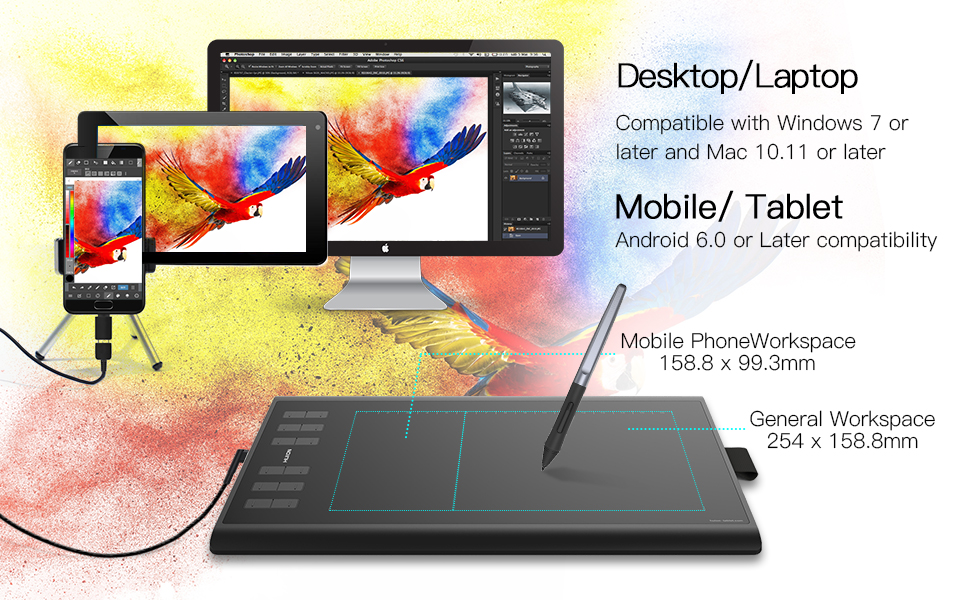
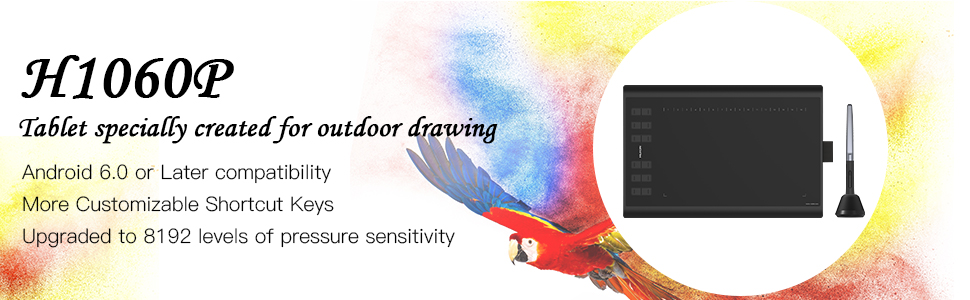
The HUION Inspiroy H1060P is a cutting-edge graphic drawing pen tablet featuring a spacious 10 x 6.25 inches working area, 8192 levels of pen pressure sensitivity, and 12 customizable express keys. Compatible with Windows, Mac, and Android devices, it offers a battery-free stylus with tilt functionality for a natural drawing experience. Perfect for artists seeking mobility and convenience in their creative process.


| ASIN | B01HT70QGY |
| Active Surface Area | 10 inches x 6.25 inches |
| Additional Features | Pen |
| Brand | HUION |
| Built-In Media | Graphic Drawing Tablet, Battery-free Pen (PW100), Pen Carrier |
| Color | Black |
| Compatible Devices | Smartphone, Tablet |
| Connectivity Technology | USB |
| Customer Reviews | 4.2 out of 5 stars 623 Reviews |
| Item Dimensions L x W | 9.4"L x 14.1"W |
| Item Weight | 16 ounces |
| Manufacturer | HUION |
| Mfr Part Number | HUION 1060 Plus |
| Model Name | Huion Inspiroy H1060P |
| Model Number | HUION 1060P |
| Native Resolution | 5080LPI |
| Operating System | Windows 10/8/7, MAC OS X 10.10 and above and Android 6.0 and above |
| Pressure Sensitivity | 8192 levels |
| Screen Size | 10 inches |
| Special Feature | Pen |
| Specific Uses For Product | Drawing,Writing |
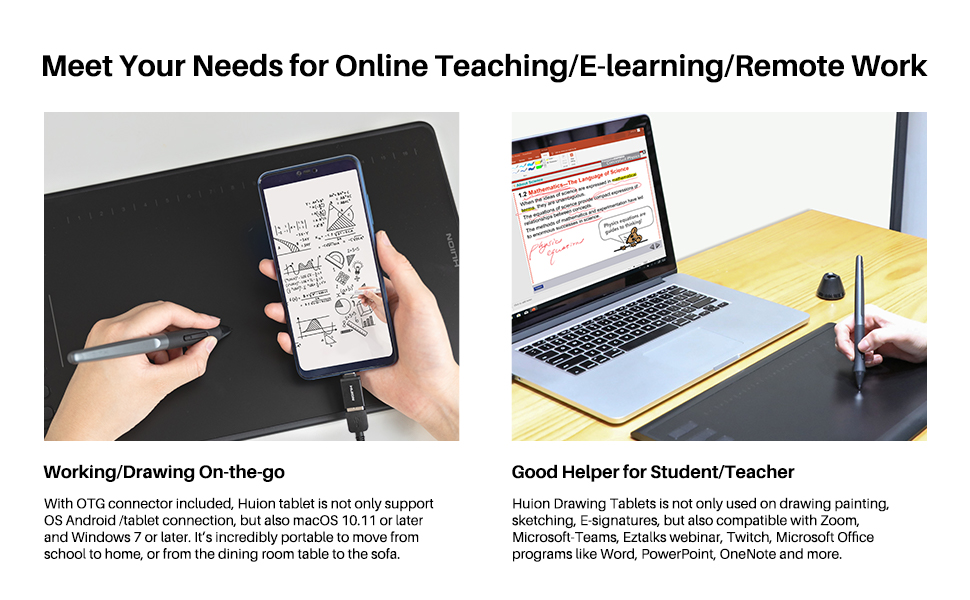
| Target Audience | Teacher |
| UPC | 700064998755 |
| Unit Count | 1 Count |
P**R
works great after all for Project Dogwaffle
Someone asked me to do a video review. Not sure I'll have time, but this will hopefully serve to share the experience that I had. It was not all smooth sailing, a bit rocky at first. But all is good, now, because I don't know what was the root cause of the problem. read on... I have been using tablets from Wacom (Graphire wireless, Intuos 2, 3 with long cable for doddling while sitting on couch and plugged to big screen... ) and other, cheaper tablets (entry levels, $20-$40 range) for many many(!) years. I have to, I am a developer of paint and animation tools with Squirreldome and thebest3d. I still have the Intuos and I like that it generates angular data (twist) with the default pen and other angle (tilt, yaw) with the 6D pen, that special pen that has the look and feel of a Copic marker. So yes, that's something I would likely be missing here. The goal for me here was not to find a tablet that replaces every single aspect of the Wacom Intuos. If you want a tablet that includes advanced angular options, and you use software that knows what to do with it, prepare to spent $200-$400 or so, and perhaps more for extra pens. Also be sure to compare the surface size. I bought this one not just once, but twice: first and foremost once for a friend artist who has traditionally been drawing pencil on paper, then uses my software to scan and colorize it, add various artsy styles, make it pop art etc...The second unit I bought for myself, thinking I need to know how well it works with my software and whether I can truly say I like it, and can recommend it to other fellow artists. I'm glad I got my own too. The very first impression was excellent. The second impression,....still good and as expected,... just plugging the thing in and see if it works, so was excellent too, it was already tracking the position, but no surprise there, the pressure was not registering yet., No surprise, I hadn't installed their driver yet. So, what about their driver? I went to the website , found it, got it. Easy peasy. When I installed the driver, I ran into a snag. First, all looked fine, cursor still moving with my hand, Click, right-click, all fine. When starting my software, the cursor stopped moving. Couldn't do anything with the pen. The mouse was still allowing me to use the software and exit too. And the touchpad on this laptop also still worked. Just the position controls from the tablet went silent, it seemed. I tried various older versions of the driver, no difference. I uninstalled the Wacom driver, thinking maybe there was a driver conflict between the two, ... still no go. I tried disabling the antivirus. No progress... I finally remember rtfm, read the 'free' manual.... just because I always remember how much effort goes into documenting how it works in theory and perhaps, just perhaps, there might be a note or comment in the manual that would help. And wouldn't you believe it, I found a red marked note: something to the effect that if you see the cursor jiggling erratically, or getting stuck, perhaps there are too many input devices connected. Hm.... They recommended a max of 2: mouse and tablet. I counted 3 on this laptop: mouse, tablet, and touchpad from the laptop. Bingo. I disabled the mouse. And Voila! Wonderful, or as the Germans say: wundervoll. Even more fascinating: I later plugged the mouse back in, and it still works. Go figure. So who knows in the end what the issue really was, what the root cause might have been? It may have nothing to do with the Huion driver vs. Wacom driver or too many input devices,.... it may be something unrelated, pure timing coincidence, maybe after rebooting a few times and getting rid of this or that, who knows... the fact is that initially, there was a problem on my particular system. And it was ONLY with my software, which uses VBtablet as the API. It was not affecting the MS Ink all, Irfanview, Photoshop, Hexagon, Carrara, Curvy 3D, or other paint and 3D programs I also carry here. As a developer I carry a bunch. Competitors or friendlies alike. I could only see a problem with my own software. So I have to also assume it was a conflict in VBtablet code. Or, dare I admit, a bug in mine? The thing that puzzles me is that it went away. In the end, that's all that matters. It works, and it is beautiful. Now I am very pleased with the tablet. It is a good value, great size for drawing. Great customization options to select what part of the surface you want to actually use, such as when you don't want to come too close to the edge and you prefer to add some larger margin to the inactive zone. Yes, it would be even better if it also registered angular data. I haven't done all my tests with that feature yet. My software registers twist angles for bristle brushes, it's on my to-do list for in depth testing. For now, I can say I am impressed, to say the least. Yes, the website could be better, calling it 'Service' instead of 'Support', but oh well, it's translated from Chinese to English, and 'Customer Service' was perhaps too long to fit, I dunno. Seems to me they're doing a better job that me at my own website so who am I to complain about website details :-) Look, I speak and read several languages, I am multilingual, but their English is still better than my Chinese. So I am respectful and I'm grateful. I found the website usable. Truly. Simple, good. And responsive. I was able to quickly find the available drivers. Several versions of them, Mac vs Win, all good. Found that there is www.huion-tablet.com even written on the tablet (lower right corner - very handy for beginners!) Found that there is also www.huion.com - very intuitive - wait, one is a redirect to the other? Still makes sense though. More options to remember it. Whichever way helps to get there. Then I found even better: as you may have read, the tablet includes an 8GB storage USB chip. I had thought to myself that's net, I can save work in progress there, take it from work to home or to a friend's computer and continue work or show it off, even play it directly onto the big screen smart tv. But there's even better: The latest(!) installer of the driver comes pre-packaged on that internal USB! Wow, how about tat for handy. No need for CD ROM. No need for even hitting the internet and check their website. Just open the zip file on the USB that appears when you plug the tablet. You can uncompress the zip straight to the same device, it is not read-only. You can also if you prefer copy it to your desktop, unzip there. Then you run the installer. Badaboom, done. I found this only a little later. But I think tis is a very big value, not sure if I'm the only one who missed it. Wanted to share that too. Plug it in, install the driver from the tablet's storage drive,... done. Yeah, in my books, that alone is worth 5 stars for initiative. Not sure if it's innovative, I mean a new concept, new idea not seen on other tablets alike, maybe I just haven't installed similar devices for years.... but for me this was one of the very positive experiences. An 'aha!' moment. Can't wait to see what my artist friend's experience will be. And whether it will help her draw, dibble-dabble, sketch and doodle even better. She's awesome with the pencil on paper. As for doing the thing from scratch in digital drawing?.... TBD. There's a little bit of a learning curve for new users. You might want to practice even outside of painting, just using it as a replacement for mouse interactions, day to day stuff, read email, surf the web, for your interactions in menus and icons and desktop and everything. This in order to get used to holding the pen upright at not too much of a low angle. No doubt about it. Because you still use menus and you still click options even in a paint program. But I think this is a good sized tablet with just the right focus on what matters most. The angular info, the rotational twist on the pwn,.... not so sure I'll miss it much. The software takes care of some of that as it turns the brush with the direction of the path of my brush strokes. That's not the exact same thing, I know, I know. But ask yourself, how many times have you twisted the brush while painting oil on canvas? In a lifetime? Thanks for reading. Happy drawings, or as we like to say, happy wafflings and howlings!
J**N
Not bad but misleading - Wrong Product Sold?
This is my first pen/pad. I was excited to get it but found it did not really work out of the box. The item I ordered was supposed to be the upgraded model (8192), but I received the older model (2048). I downloaded and installed the driver for 8192, but it never worked. The pad was almost useless as I couldn't set the sensitivity, and it would randomly stop "printing." So, it sat in the box until I could look into it further. I reached out to HUION support and they told me I had actually ordered the 2048 version based on my S/N. Half a point deduction for not listing this in the model on the product. I noticed others had commented about receiving the wrong model. HUION support told me the 8192 came with the "upgraded" version. My invoice shows: Huion Micro USB Drawing Big Size Graphics Tablet with 8G SD Card and Rechargeable Pen - 1060 PLUS Upgraded Version Digital Pen Tablet (New 1060PLUS) HUION response: "The New 1060Plus was originally created with the 2048 pen pressure. When higher pen pressure is available, we retained everything except that it has 8192 pen pressure. So the upgraded version is the New 1060Plus (8192)." This has "upgraded" in it, so I was expecting the 8192. Unfortunately, HUION support closed out my ticket as "resolved." It's not, I believe I should have received the 8192 model based on their response. At any rate, I'm using the drivers now for the 2048 model and it's working. I do like HUION and may upgrade in the future, but it would have been nice to get the correct model and avoid these issues.
N**L
Love it! As a previous Wacom user I'm never going back!
I waited a few months before writing this review to make sure I got to use the tablet and see how it worked. Previously before buying this tablet I had the Wacom Bamboo Capture. Used that thing for almost a decade. Finally after all that time not only was the tablet breaking, but it was outdated as far as pressure sensitivity and other specs. I decided to try this Huion tablet as for the specs it was much more cost effective than any Wacom product. I have to say I love it! The driver was easy to install and came on the SD card inside of the tablet instead of a CD, which is great if you don't have a computer with a disc drive. The pen, though it needs a charge, seems to last forever. I charged it for two hours the day I got it, and I haven't had to charge it since (I draw for hours almost daily.) It also comes with extra pen nibs inside of the pen holder, as well as an additional baggie of even more nibs, so there should be no replacement worry. For my own curiosity though, I looked up on Amazon pen nib replacements and they were MUCH more affordable than the Wacom replacements I needed for my old tablet. The pen is comfortable to hold. However it has no eraser on the back. This never bothered me as I never used the Wacom pens with the erasers. Though if you're used to that it might bother you. As for the tablet itself, the driver installed easily and without issue. (I'm using a laptop with Windows 8.1) The pressure sensitivity was amazing, felt very similar to sketching on paper. I experienced no jittering or lagging either. I mainly use SAI but I've tested it in the following programs: -Photoshop -SAI -Krita -Manga Studio The only issue I had was with SAI. However, I knew prior to buying the tablet that Huion can be a little fussy with SAI. However, I was able to get it to work just fine by making sure that both SAI and the Huion driver as set to run as Administrator. Since then I've had no issues and it works fine with SAI. The hotkeys were very easy to program and use, so were the buttons on the pen itself. The softkeys were equally as easy to program but I never use them myself only the physical hotkeys. I enjoy being able to save my files directly to the tablet itself as well. My previous laptop had a hard drive failure and I lost everything, so I feel good knowing that I can just keep it on the tablet itself instead of worrying about keeping track of an extra USB or SDcard, and my work will be safe if this laptop dies on me as well. Overall I highly recommend this tablet for newbies and more experienced artists alike. The feel, size, and specs are wonderful for the price.
R**L
A large, quality tablet for such a small price
I'm not a professional artist so I never wanted to spend a lot of money for a decent tablet. I know industry leader Wacom has some reasonably priced tablets for amateurs like me, but I'd heard before that Huion offered good quality tablets comparable to Wacom's professional versions for a fraction of the cost. If I was going to spend $100 on a tablet anyway, why not spend it on something bigger and nicer and on par with the professional tablets that cost twice as much? I've only used this tablet a few times since I purchased it but it feels fantastic. A huge active area for the price, but thin and light and easy to move around. I haven't had to charge the pen yet, but I'm intrigued at the fact that I'll be able to just plug it in like anything else when the time comes. No more hunting down batteries like I had to with my previous tablet pen. I like that this tablet comes with a little sleeve to slide your pen into so you're less likely to lose your pen, and also keep tablet and pen together when transporting it. Installation was simple. I'd looked up reviews before buying this, and apparently some people have difficulties when it comes to installing and setting up the drivers for Huion tablets. Supposedly this tablet comes with the driver built in (or included on the SD card) and it's supposed to install automatically once you plug the tablet in. I tried that but for some reason it wouldn't work. I didn't feel like wasting a lot of time trying to troubleshoot the problem, so I merely uninstalled every driver and program related to the tablet (and for my previous tablet), downloaded the drivers from Huion's website, and then plugged the tablet in again. It worked perfectly after that; I went straight to Photoshop and began doodling and haven't had a problem since. All in all I'm very pleased with my purchase. I feel like I've gotten a very high quality tablet for a fantastic price. The packaging and included extras/gifts were very nice as well. If you're a beginner or an amateur or merely someone curious about the quality of a Huion tablet, I highly recommend giving this a try. $100 is such a small price to pay for a tablet of this size and quality.
M**H
Good-looking, hard-working, chock-full of features.
This is just a fabulous tablet. I had been using a Wacom Bamboo provided by my school before investing in this tablet for myself, so I can't say precisely how this compares to a similarly-sized tablet from Wacom (such as the Intuos), but I can say that this tablet is worth every penny. The construction is very solid, and the active area has a pleasant texture to write on. There are two small green lights hidden under the logo that light up when the pen is hovering within range, when writing on the surface, or when clicking a hotkey. I did run into some driver glitches at first, since the latest version for Windows (13.14.13) does NOT work for this tablet. You have to download version 12.3.7 for this model. To access the advanced settings to configure the active area and hotkeys and to change into left-handed mode, you have to run the driver program as an administrator. Once I got the driver running, the pen sensitivity was acute and the hotkeys were responsive. Besides the rough start with the driver, this tablet works wonderfully. The pen has a auto-sleep feature to conserve battery, but charging it for an hour has led to at least five hours of use and it is still going strong. The hotkeys do have a little bit of horizontal wiggle, but they are very secure in the vertical direction. The connecting cable has a right angled bend so the cord runs parallel to the edge of the tablet. This feature is quite nice for right-handed users, but kind of backfires for left-handed users like myself. The softkeys are printed onto the tablet surface, so when in left-handed mode, they get moved to the bottom edge. This is a little annoying, since there does not seem to be a way to move the clickable region to the top edge. My final quibble with this tablet is that it can't be used like a touchpad, since the active region maps to absolute location on the monitor. The area is so large that this isn't really a big deal, though. The included accessories, especially the extra nibs, are a nice touch. Overall, I highly recommend this tablet. For $80, I don't think a better product exists. For most graphic design and digital drawing work, this tablet is more than capable of meeting your needs.
N**Z
I like the price alot
I like the price alot. After a recent hand injury I was looking for a secondary good size tablet without a price tag that is insane. This device is very comfortable. The pen and the plastic surface works fine. Overall, for the price this is a great secondary or even a starter art tablet. The sensitivity is good, I work with Maya, Zbrush, Photoshop and clip studio. But it was not as simple as WACOM that you plug in your device and it works. This one I had to turn on and off the SUPPORT TABLET PC option to get the sensitivity to work and once I did it worked great. As for drivers this one is a big NO, NO! The drivers that came with the product worked but its outdated, so when I went to get the new ones, NORTON Stop the setup file and detected it as a virus. The software is not bad, very easy to use and easily customize the side buttons and pen. Again I do like this device, for the price you cannot go wrong. The CON's: I cannot be too judgmental cause for a art tablet this size under 100 its a bargain but here are my cons: 1. NO tilt, not a big issue when I am doing editing or sculpting so its not like I must have it, but hopefully in the future the pen will adjust to a tilt. 2. The tablet itself is black which means that the buttons are black. I wish they would have either different color buttons, or the tablet has a duo color, one for the drawing area and a different color for the button area, or my favorite is the buttons have a light source. Either way I spend more time trying to find the buttons than begin efficient . 3.The eraser (lack of) Hopefully they will come up with a pen that has an eraser. I understand that it doesn't because of the charging port (which is not that bad). But hopefully they will come up with a non charging/battery less pen. But the pen itself is fine, its light weight and functions very well. I like the product and I will keep my eye on this company and hope they will do amazing things.
W**R
Good, functional drawing tablet on a budget.
After discovering that my old Wacom tablets have been made obsolete by Wacom by not updating the drivers, I went looking for a decent replacement. What I need are very simple tools to edit artwork for clients occasionally, not on a daily basis or even a monthly basis. In fact, I hadn't needed the old Wacom tablets for a couple of years now, I just needed something with a decent drawing area that gave me better control over the pen and eraser tools than a mouse or trackpad without spending hundreds of dollars. Installing the Huion New 1060 was a little awkward, you need to restart your computer for it to function although Huion doesn't tell you. I just did some editing with it and I can tell you that it's worth the saving over the Wacom for simple needs. The surface has just enough friction for my capabilities which makes it better than trying to use an iPad as a cheap tablet alternative. There are some strange issues with how the Huion takes over the cursor from my trackpad so I have to click the trackpad before I get full control back to it. The Huion has hot keys that enable you to save and other functions but the black on black button design is a little hard to get used to. I'm sure I'll remember the buttons as time goes on. Overall, for $90 dollars I am for the time being happy with my purchase.
A**N
Wonderful tool, works fantastically.
My first thought upon opening the box to this tablet was how stunningly sleek it looked, i was immediately impressed. The body is much like the picture, smooth, sleek, and quite sturdy. It comes with a microUsb-Usb connector, and a Usb-proprietary connector to charge the pen. The pen itself is a relatively smooth thing, with a springy tip for an amazing amount of tactile feedback for the pressure levels, which i love. Driver installation was a cinch, however, if you are going to use this tablet with the huion drivers, i would recommend disabling the preinstalled windows tablet pc drivers, as they conflict pretty heavily, but when you figure that out, it works fine. This article explains the process [...] . The article does say wacom, but the process is the same with all huion tablets. Okay, once the drivers are installed, the tablet can be used to draw in pretty much any painting/editing program (Krita, Photoshop, Medibang, etc) and you can also use it to sculpt in a 3d modeling program (Sculptris, Zbrush, Blender, etc). Pressure sensitivity, all 2048 levels of it, works like a charm, and i am thoroughly satisfied with it, and i would definitely recommend buying this tablet over any of the wacom alternatives, as it is, on average, less than 1/3 of the price, and has most of the same specifications. Great purchase. The two pictures are my current WIP tests using Krita for painting and Scultris for sculpting.
チ**ポ
大変使い勝手がいいです。
大きさとペンと、描き心地と、すべてが及第点です。 以前のタブレットが、Windows10になってから使えなくなりました。 プリンストンのタブレットで気に入ってたのですけど。 メーカーもとてもよい印象です。 買って失敗すると言うことはありません。 タブレットでどのくらいの絵を描きたいかによります。 私の場合は漫画ですので、十分でした。 このくらいの絵ならすぐに描けますよ。
A**I
Five Stars
best
G**Z
Excelente producto
Buen producto, cumple con la descripción, excelente tamaño del área de trabajo, botones configurables ayuda al flujo de trabajo.
A**ー
遊び程度の仕様ですが大変満足
国内大手に嫌気が差し買って見ましたが使用感もとてもいいです ペン先にすこし弾力があるので好みがあったり慣れが必要だったりするかも ドライバはHPからDLしましょう簡単にできます
無**名
慣れるまでは時間が必要でした
これまでずっとマウスで描いていて、初めてのペンタブとして購入 ペンをかなり近づけないとペンに付いているボタンが反応しないのがなんとも あとペンに薬品のような匂いがついていて、手に残ったりとかがありますがまあ許容範囲 まあペンタブはこんな感じなのかな、という感じで割り切ってます あとやっぱり最初は描きにくいですね...まともに描けるまで割と時間が必要でした
Trustpilot
2 weeks ago
2 weeks ago