


🖨️ Elevate your office game with wide-format power and smart wireless freedom!
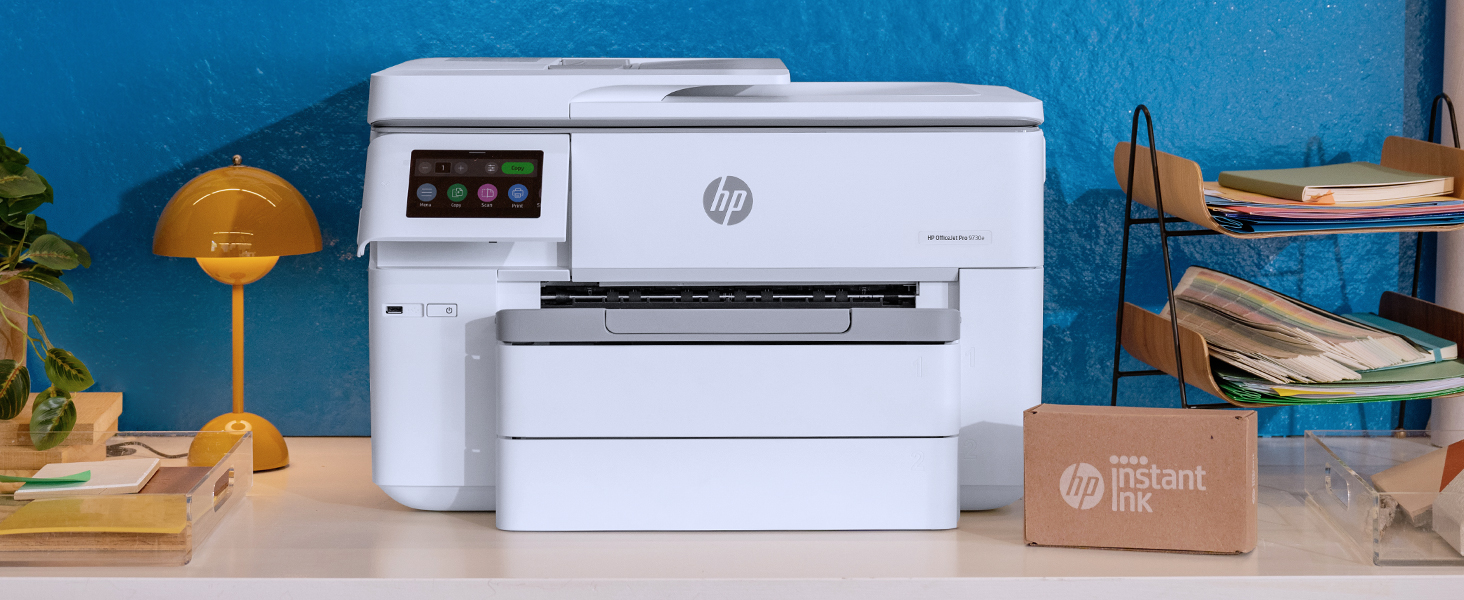
The HP OfficeJet Pro 7740 is a versatile wide-format all-in-one inkjet printer designed for small businesses and professionals. It supports wireless printing, duplex scanning and printing, and prints up to 11x17 inches with vibrant color at speeds up to 22 pages per minute. With dual 250-sheet trays and HP Smart app integration, it offers high-volume efficiency and seamless mobile connectivity, all while reducing printing costs by up to 50% compared to color lasers.




| ASIN | B01JUCLLGK |
| Additional Printer Functions | Copy, Fax, Scan |
| B&W Pages per Minute | 22 ppm |
| Best Sellers Rank | #23,167 in Office Products ( See Top 100 in Office Products ) #62 in Inkjet Computer Printers |
| Brand | HP |
| Built-In Media | HP 952 Setup Black OfficeJet Ink Cartridge (~1000 pages), HP 952 Setup CMY OfficeJet Ink Cartridge (~625 pages), HP OfficeJet 7740 Wide Format All-in-One Printer, Phone Cord, Power Cord |
| Color | White/Black |
| Color Pages per Minute | 34 ppm |
| Compatible Devices | Laptops, PC, Smartphones |
| Connectivity Technology | wired, wireless |
| Control Method | Voice |
| Controller Type | Amazon Alexa, Vera |
| Customer Reviews | 4.2 out of 5 stars 4,090 Reviews |
| Display Type | LCD or LED or OLED |
| Dual-sided printing | Yes |
| Duplex | Automatic |
| Global Trade Identification Number | 00889894812605 |
| Hardware Interface | USB 2.0 |
| Ink Color | black, cyan, magenta, yellow |
| Item Dimensions D x W x H | 18.38"D x 23"W x 15.1"H |
| Item Type Name | HP OfficeJet Pro 7740 Wide Format All-in-One Printer with Wireless & Mobile Printing, HP Instant Ink & Amazon Dash Replenishment ready (G5J38A) |
| Item Weight | 42.9 Pounds |
| Manufacturer | HP |
| Maximum Copy Resolution Black and White | 1200 x 1200 dpi |
| Maximum Copy Resolution Color | 1200 x 1200 dpi |
| Maximum Copy Speed Black and White | 22 ppm |
| Maximum Media Size | 11 x 17 inch |
| Maximum Print Resolution Black and White | 1200 x 1200 dpi |
| Maximum Sheet Capacity | 500 |
| Maximum print Resolution Color | 1200 x 1200 dpi |
| Model Name | G5J38A#B1H |
| Model Number | OJP 7740 |
| Model Series | 7740 |
| Number of Trays | 2 |
| Other Special Features of the Product | Auto Document Feeder, Auto Duplexing, Double Sided Scanning, Energy Star, Touch Screen |
| Paper Size | 3 x 5 to 11.7 x 17, Letter, Legal, Executive, Statement, Envelope |
| Power Consumption | 37 Watts |
| Print media | Paper (plain) |
| Printer Connectivity Type | wired, wireless |
| Printer Output Type | Color |
| Printer Type | Inkjet |
| Printing Technology | Inkjet |
| Processor Count | 1 |
| Resolution | 1200 x 1200 |
| Scanner Type | Sheetfed |
| Series Number | 7740 |
| Special Feature | Auto Document Feeder , Auto Duplexing, Double Sided Scanning, Energy Star, Touch Screen |
| Specific Uses For Product | Office |
| Total USB 2.0 Ports | 1 |
| Total Usb Ports | 1 |
| UPC | 889894812605 |
| Unit Count | 1.0 Count |
| Warranty Description | One-year limited hardware warranty |
| Warranty Type | Limited warranty |
| Wattage | 1 watts |
A**.
A Decent Printer for the Money
This HP 7740 replaced a several year-old HP 8710 (which is still running fine), but I needed to be able to print on larger paper - 11x17 (for technical drawings), and the 7740 does that. It also takes the same 952XL ink cartridges as the old 8710, so that's another big plus for me. NOTE: This printer (right out of the box) will accept and run "aftermarket" (non-genuine) HP ink cartridges (that's what I'm using), as does my 8710. HOWEVER, do NOT do the firmware updates if the printer prompts you to. That way, you can continue to use the aftermarket cartridges. DO NOT opt for "automatic updates" during the printer setup. Once the printer was unboxed, the set-up was very easy. Ran the power cable (to my UPS), and an Ethernet cable, for local network printing. Powered it up, installed the ink cartridges, and the unit went through its "maintenance" routine (first run), and then was ready to go. I initially had to install the genuine HP cartridges, but after its initial "maintenance routine", I installed the larger generic XL ink cartridges, which work fine. I had a bit of trouble getting my office PC to load/install the Windows HP print driver (from the HP download site), but once that was done, the printer is working perfectly. Overall, it's a very nice printer. Not sure why there are several negative reviews... It is a bit big (physical size)... However, it does print quite well - AND - it will accept & print 11x17 tabloid size paper, so I can deal with the size.
J**R
GREAT for ledger sized paper!!
I use this printer for our home printer and for working with my watercolor paintings. Jim addition to printing remail, invoices, instructions, menus and the like, I often print and SCAN prints that are ledger sized (that's 11"x17" sized paper). The scan bad for that sized printer makes this unit a monster! I have room in my office, so it's not a problem. But it's a presence!! The Good Points: I found the setup quite ready. It connected to my network like a champ. It connected to our Android phones, our iPad, and my Raspberry Pi (Debian based Linux .. via CUPS) systems without any problem. Print and Scan work wonderfully. Copy can do double sided to double sided output without any problem. The printer comes with two paper trays. Each can hold you ledger sized paper. I have the top main tray filled with letter sided paper and the bottom treat filled with ledger paper. The printer can automatically select the appropriate tray based on the document size you print. It can also automatically fit the document to the paper. So if you print a letter into the ledger sized paper the document is increased in size to fit there paper. That is a seeing that can be adjusted to fit your needs. It has quite extensive FAX capabilities. Though I looked at them, I do not use this as A FAX system, though it's good to know it's an option. It connected via Google to "the cloud". I can print to this printer, even when I'm not using my home WiFi. I often use this feature when I'm away from my home network. HP includes an e Print feature, where I can email a document to the printer. And if course, this and the cloud printing feature can be locked down so only I can use these features to my printer. But I can add authorized users. So I can allow my son in Europe to print into my printer. Cool! HP includes WiFi-Direct printing. That is, I can print directly from my phone without paying through the router. I don't use this feature. However, I looked at it and found it sounds, usable and can be secured. The print cartridges are reasonably priced. Not the best, but not bad. I use the XL version of the cartridges. They cost less per sheet. Also there are four ink cartridges. Thus, if I run out of Cyan, I only need to purchase Cyan. The system can isometrically order ink, if the ink is marked as low. I personally prefer to order on my own. But it's a good feature. The online web management menus are very helpful. The web interface includes management, maintenance, and reporting. It's quite extensive. The Downside: Extending a print tray to ledger sized paper takes some time and effort. It's not very obvious. But keep at it. It does work. The phone based scan only does single sided scanning. It can copy double to double. It should be able to scan to my phone double to double. Overall: It's a great printer. It's sounds intimidating. But once you set it, you can forget it. My wife never printed to the old printer. But she prints to this all the time. The difference? Once you set the options, you don't have to fiddle with options. It's an easy printer to use and live with. I highly recommend this printer if you need to print and scan ledger sized paper.
A**A
Impressive Performance for a Sub $200 Printer
Unboxing: First off, the box is HUGE. It was well protected, and was a struggle to remove from the box. I can see why people recommend this as a two-person job. It's heavy (a little over 40lbs), but not unmanageable. Setup: Some of the reviews have indicated difficulty with the setup. I will say HP makes it a bit more convoluted than it needs to be mainly because of their proprietary software, etc. After unpacking and removing all the protective tape, installing the included cartridges was fairly straight forward, although initially I got an error on the touch screen saying at least one cartridge was installed improperly or defective (but it didn't tell me which one). I went back through, and the second try did the trick. Connecting it to the Wi-Fi network was simple enough via the touch screen however. That's the point it gets a bit convoluted, and you have to login to a special HP website to register it and download software, updates, etc. Total time spent was probably about 15 min. If you're not comfortable with this sort of thing, I can see how it might be a challenge. Performance: I've only done a limited amount of printing thus far, but the main reason for purchasing this particular model was the ability to print 11x17. After the setup process, this was what I tried first. After filling tray #2 withe 11x17, you need to use the touch screen to let the printer know that's the size you added, otherwise you'll run into a problem printing. The printing is relatively quick on 11x17, and the color quality is very good. There was no banding, and the paper fed through evenly. I only need to print 11x17 infrequently, but when I do it's nice to be able to load the entire tray with it and know it will feed through without any issue (at least thus far). This printer replaced a 5+ year old Brother that also did 11x17, but the ability to just leave it in a tray and not have to feed it through the back one piece at a time is fantastic. I've yet to find out how long a life I can expect out of a set of cartridges, but if it's anything extraordinarily short or long, I'll update this review. It's Ginormous: I felt the need to add this. As I said, I replaced a 5+ year old Brother printer that also did 11x17 (one sheet at a time fed through the back) which worked pretty well up until the past few months (though 11x17 printer was always a pain, as you'd have to feed it through by hand and it often wouldn't feed through straight and would require multiple attempts). When I saw the photo of the printer, I could tell it was taller than my old Brother printer, but I had no concept of just how much larger the footprint is. It's GIGANTIC. If you don't have a dedicated space for this beast (forget about a shelf... it's too heavy and large, and it will take up the bulk of an average size desktop), you'll be out of luck. I have it set on top of a tall steel filing cabinet, and it not only takes up the entire top but requires extra space from the overhang of the 11x17 paper tray and extension that hold sheets after the are spit out of the printer. It's unfortunate, but this could be a deal breaker for a lot of buyers. That's unfortunate, because it seems like even with the 11x17 tray and printing capability, HP could have slimmed it down a bit. Other than the extreme size-- which won't be a problem for everyone-- the only other negative is the small dimensions of the touch screen. There's definitely room for a larger screen, and you have to take your time pushing the icons and keypad to get it right. I'm happy with this purchase and so far would recommend it. But be advised that it might simply be too massive for a small office space and will likely require a dedicated (and sturdy) piece of furniture to accommodate it.
S**N
"Printer Offline" Is Usually NOT a Problem With the PRINTER
I'm (re)writing this review in the hope that it may help some of the folks out there who have struggled with the "Printer is offline" error message in Windows without much success. One post I ran across in an online support group said he had tried three different 7740 units and all gave the same error message and that HP tech support was useless. I'm sure that's probably true. I struggled with the same issue after a new wireless installation and it came close to driving me nuts. I seriously thought about sending the printer back, but the fact that the online poster had tried three different units gave me pause. The likelihood of three identical machines all being hardware defective in the same exact way is pretty darn small. If you're lucky, the problem may be as simple as unchecking the "Use printer offline" box. Go to "Control Panel," "Devices and Printers," right click the HP 7740, click "See what's printing," then click "Printers" at the top of the next window and uncheck "Use Printer Offline." But if you're unlucky, like I was, "Use Printer Offline" won't be checked anyway. Don't panic. While I offer no guarantees that what I've written below will help and take no responsibility for any damage you may do to your setup trying to follow my advice, it may again be helpful for some people's situations, even for folks with a different printer. Let’s think about what “Printer Offline” really means. As many have said it doesn’t mean the printer is “off” or won’t print a test page from the control screen. What it means is that Windows can’t find it. There are at least two possible reasons for this. One is that you have a driver conflict with a different printer. You may not even think you have another printer installed, but because of how Windows operates you may. Another cause may be that Windows can’t find your printer where it thinks it should be because of how your router is assigning your printer’s wireless (IP) address. I suspect this is an even more common problem but has a fairly straightforward though involved solution. The LEAST likely cause is a hardware defect. As the example above shows, the likelihood that three identical units are all defective in the same way is practically nil. It is almost always a problem with Windows “finding” the printer, that is to say, software communication issues, not with the printer itself. OK – apologies for the length of this in advance. In the case of a driver conflict – which I had, unbeknownst to me – I found the conflict when I right clicked on "Printer Properties" in "Devices and Printers (in Control Panel)," and then clicked the "Ports" tab. There to my surprise was an HP driver installed for the HP Envy, even though I'd never had the Envy connected to this computer. (It was left over from cloning the boot drive from another OS.) The 7740 was listed as the default printer, but the Envy driver had the TCP/IP port and was “online.” The Envy seemed to be confusing the OS into thinking that the Envy should be online and the 7740 shouldn't be. The immediate solution there was to delete ALL the printer drivers (including the 7740) from the machine. (You can't delete MS XPS or Adobe PDF but that's OK.) You can try just deleting every printer listed in "Devices and Printers" by right clicking them and choosing "Remove Device," but you may need to use an uninstall program or go into the Windows Registry - which is NOT for novices. (Basically DON'T if you don't know exactly what you're doing and aren't prepared to reinstall your whole OS. Fair warning!) Deleting drivers isn't always easy, but again, the error message is probably not caused by a problem with the 7740 hardware itself. As other sites describe, I then manually reset the 7740 unit by unplugging it while it was still powered on, waiting 60 seconds, and plugging it in again. It powered on automatically. Once I did that, I reinstalled the 7740 drivers MANUALLY in "Devices and Printers" using the "Add Printer" button. (It's usually the best way to do a wireless printer install anyway.) The OS found the 7740 using the TCP/IP port (the TCP/IP connection - always best), and it all worked fine – for a time. That’s when I discovered the second likely cause for the “Printer Offline” error message. Even though I no longer had driver conflicts, Windows still often lost track of the wireless address (the IP address) of the 7740. Why would Windows do that? Let me explain. Modern routers assign IP addresses to any device that connects to your wireless network automatically by a protocol called DCHP. Before DCHP, routers assigned addresses the way you get a social security number: each person gets her own unique number and no one else has it. Good enough. But because there can be so many devices connected to a home network, and also because as devices turn off and on they disconnect from and then reconnect to the network, DCHP will REUSE addresses from a disconnected device for a NEW device that connects (or an old device that reconnects), even if a device that reconnects had a different address before. Or it may get an entirely new address. Whatever. This means that when your printer “goes to sleep” to save energy and thus disconnects from the network, when you go to wake it up to print something later, the DCHP router will give it a DIFFERENT IP address from the one it first had, but Windows, bless it, will still try to find the printer at its old IP address. And if it can’t, which it often can’t, Windows will conclude that your printer is “offline” and refuse your new print job. It’s the equivalent of the Post Office “Moved. No Forwarding Address.” (DCHP is fine for most devices but for whatever reason doesn’t play well with many printers.) Again, this isn’t the printer’s fault, though it is to some degree the manufacturer’s fault, since they don’t tell you how hard it can be to make a solid wifi connection for a printer to a network. “Just put your install CD in your CD drive and…” Yeah no. So how to fix? Well it can be intense but it’s been working for me for several days now, fingers crossed. First, go to your router’s admin program. It will have an address like 192.168.0.1 (Read the router manual.) Type the address into your browser (the periods are important). You’ll need the userid and password for the router, something like “admin” “admin1” depending on model. Check the manual. Go into your router IP address settings – maybe on a tab like "LAN settings" (manual will show). This tab will show the router’s starting IP address setting – the numerically lowest address the router will assign to a device – and the highest IP address setting – the highest numerical address a router will assign. These will typically be something like 192.168.0.2 and 192.168.0.255. See photo. Change the last three digits for the highest setting to any lower number – for simplicity’s sake say 250. Apply the change. Leave the router admin window open for now. Go to your printer’s settings screen on the 7740 and locate the printer IP address, again something like 192.168.0.xxx. Type that into a new window in your browser too. You’ll then get the 7740 internal settings screen in your browser window. Go to Networking, Wireless, and IPv4 addresses. Deselect “Automatic IP” or “DCHP” and select “Manual IP.” In the actual address space type in the first three segments of the numerical sequence you typed above, and then “251 (or 252 or 3 or 4)” for the last segment. See photo. Hit Apply/Save. Also, on the “Network” tab choose “Network Protocols.” “Check IPV4 Only” and “Apply.” Ok. A few more steps. Go back to your router window to the LAN settings page. If you’re lucky, your router will have a setting that lets you MANUALLY assign an IP address to a device. See photo. (Can’t help you here if you’re not.) Get your MAC address for your printer from the printer settings “General Summary” page. See photo. Type that address into the “New Device” or whatever space on your router manual assignment page. The IP address should come up automatically. See photo. Exit your router setup. Go back to your 7740 settings. Go to “Network” “Advanced Settings” “Microsoft Web Services.” Uncheck everything. See photo. Go back to HP 7740 in “Devices and Printers” and delete it by right clicking “Remove device.” Next go to “Add Printer” on the “Devices and Printer” page on the upper bar, and choose “Add network printer.” The wizard will search and should find the 7740 at the IP address you just assigned it, 192.168.0.251 or you can enter it manually. (Remember, use the first three segments that your printer settings panel says, not this example.) Go with “Use the current driver” or you may need to select the manufacturer and then the specific printer. No worries. When you get to “Print Test Page,” click it. Your page should print, your printer now has a PERMANENT IP address so Windows should never lose track of it again and thus should never say it is “Offline.” The reason this is so involved is why printer manufacturers don’t want to tell you to do all this to install a wifi printer. And in many cases they don’t need to. But in other cases they do. This is also called “setting a static IP address.” There are simpler procedures on the web but they didn’t work for me. “Howtogeek.com” and “linerarthoughts.co.uk” are the main sources if you run into difficulties. Again, when so many people are having the same problem it usually isn’t the hardware. Hope this helps. Please comment if you find mistakes. Best of luck!
T**R
Piece of Junk
There are three things I dislike about this printer. (1) I keep getting an error message that the print heads are "missing or misaligned." They are definitely not missing, and frequently when I try to run the tool to align them, I get the same error message, and, because the printer thinks the print heads are missing, the alignment fails. I have to cycle the power and run the alignment program several times to get the printer to think it has print heads. (2) Pages print too far down the page. There is a lot of white space at the top of the page and none at the bottom; in fact, sometimes the content is cut off at the bottom. I have checked the applications settings and the margins are set correctly. There does not appear to be any way to adjust the printer so that documents print with the margins set in the applications. (3) The scanner has trouble identifying where pages end if there is a lot of white space on the page or if the text is really small. I recently scanned a 10 page job that came out as 15 pages because the printer broke up several of the pages into multiple pages. Sometimes scans come out with kind of a grey background for no apparent reason. Also, the printer is huge. I probably should have realized that, because the trays will accommodate 11x17 ledger paper, which is kind of a cool feature although I don't have a present need for it. Things I like about it: (1) The sheet-feed for the scanner. I bought it because I needed to scan lots of multi-page documents. (2) Its ability to print and scan double-sided documents in black and white or in color. (3) Its price. It is cheap compared to other printers with similar features, but on the other hand it is also an example of getting what you pay for.
J**A
HP 7740 printer works for me!
First of all I purchased this an open box item in January 2019 which means that someone returned it and I purchased for $50 less. Thank you!!! Also, it came without the original box, but Amazon was kind enough to supply the plug, and some instructions. The printer works fine as I only print mostly in black and white but not photos. I have 2 other HP printers that I use for photos as those are part of the HP Instant Ink program. I say that is a fantastic program and a great savings since I only use them to print 4x6, 5x7 or whole page photos. Super!!!! Anyhow, my wife uses it to print on the large 11x17 paper for work since they want paper posted on a wall (she works for a school - so outdated). She prints some pages every month. It works for her so I am happy that she is happy. The Initial setup was taxing since whoever setup the printer disabled the wifi. I had to download HP Smart on my PC in order to find the correct settings for the printer. I did an initial reset on the printer itself but if I did not download the software I would have never been able to enable wifi and other settings that I needed. The HP installation guide helped somewhat but not very much to point me to the correct path. Also, I had to setup a login and password to the printer as well. The printer is very heavy and you will need to people to move it around. Also, you will need to supply your own Ethernet cable if you are going to set it up using that way. For now it is working as needed. If you want to print on the larger 11x17 paper, then on the HP settings you need to look for Tabloid in order to print on the larger paper. The printer does print on both sides so that can easily be done as well. Even though the initial setup was a little time consuming, the printer is working and I did receive standard print cartridges (952) for every single color including black. I think it is a great printer and it does print jobs quickly. This printer is not part of the HP instant ink program just for your information.
M**A
11" x 17" Printing, Copying, and Scanning at an Affordable Price
An affordable home based business printer capable of printing, copying, and scanning 11"x17" black & white as well as color documents. The only thing so far is it would be nice to be able to scan 11"x17" documents using the ADF (automatic document feeder). This unit limits ADF to maximum size of 8 1/2" x 14" document size. However, the copier surface of the printer provides for copying and scanning up to 11"x17" documents, a page at a time. Otherwise great prints, very easy set up, was printing, scanning, and faxing within just a few minutes after unboxing the unit. Mobile printing was a breeze using iPhone, iPad, and Android smartphone and tablets. Another really nice feature is this printer has two (2) paper trays. Tray 1: 3 x 5 to 11.7 x 17 in; Tray 2: 8.5 x 11 to 11.7 x 17 in. NOTE - PRODUCT DESCRIPTION ERROR: The product description for this printer on Amazon states to use 932 and 933 print cartridges. The unit comes with 952 and 953 print cartridges and HP's website states to use 952 and 953 print cartridges. So when you buy extra print cartridges be sure to buy the 952 and 953. I recommend the 952XL and 953XL for extended printing (the XL print cartridges are larger than the regular 952 and 953 cartridges and hold more ink).
P**N
1 of the best lights that I have ever owned
I went to STAPLES store to have my certificates printed only to find out that they cannot do 8.5 x 11 borderless. Well for relatively cheap money I go this printer and the reviews are correct, this is a beast of a printer with 2 print trays up to 11 x17 paper! It was easy to set up - 15 minutes out of the box and quickly printed the borderless certificates shown. Quick note, I had a little confusion on how to load 11 x 17 paper. You have to press the "A3 11 x17" blue button in the bottom right corner and pull the front of the tray toward you to extend the the tray to fit that size paper. Down side is that it leaves the tray open for dust. Hopefully they upgrade this in the future, but for now I will only load 11 x 17 paper as needed to keep the dust out. I am sure you are going to love this printer. You certainly cannot beat it for the money.
S**H
Quality is good
But the cartridges are way too expensive . Just for a use of a3 size scanner
D**N
Best printer I have owned.
Been looking at A3 printers for ages to mainly print maps for walking/cycling, trips away and general home office work. I looked at and compared many different makes and models, but this one seemed to keep coming up the best value and with good reviews. Out of the box, it's obviously big and lumpy, but I expected it to be, so not a massive problem and I wanted separate drawers for A3 or A4 paper to save faffing around, but makes it bigger. Setting it up was an absolute breeze and very painless. From switching it on, loading ink, a quick run through settings, setting up Air Print and printing the first document was literally less than 10 minutes! The speed of printing; even double sided is fast and the quality of printing on paper or photo is brilliant, and a proper play with the settings gives you easy options for sizing, layout etc. A big concern was printing costs, as the slow nasty Epsom thing I had before cost a small fortune in ink over the years, which is I know, how they make money on cheap printers. In the first few months I went berserk with this, printing off dozens of OS maps, documents, photos etc, and the ink colours are only now showing low. But I have just got replacements for less than £80 which should last me a long time now. All in all, very impressed and would highly recommend.
M**.
HP OfficeJet Pro 7740 Wide Format All-in-One Printer
In the realm of versatile office equipment, the HP OfficeJet Pro 7740 Wide Format All-in-One Printer stands out for its multifunctional capabilities and exceptional performance. Ideal for businesses and professionals requiring a broad range of printing tasks, this model combines efficiency with quality. Here’s a detailed look at its features and performance: Wide Format Printing: One of the HP OfficeJet Pro 7740’s most compelling features is its ability to print in wide formats up to A3 size. This capability is invaluable for businesses needing to produce large-scale documents, presentations, and marketing materials in-house, providing flexibility and creativity in document production. All-in-One Functionality: As an all-in-one device, the 7740 excels beyond printing, offering scanning, copying, and faxing functionalities. Its versatility makes it a cornerstone device in any office setup, catering to a multitude of operational needs without the clutter of multiple devices. Wireless and Mobile Printing: In today's mobile-centric world, the ability to print wirelessly is a must. The HP OfficeJet Pro 7740 delivers robust wireless connectivity options, including compatibility with HP ePrint, Apple AirPrint™, and Google Cloud Print™. This feature ensures seamless integration into existing workflows and enables printing from smartphones, tablets, and laptops with ease. High-Quality Outputs: Despite its broad functionality, the printer does not compromise on quality. It produces sharp, vivid prints, thanks to HP’s advanced inkjet technology. Whether it’s text-heavy documents or color-rich graphics, the outputs consistently impress with their clarity and color accuracy. User-Friendly Design: The HP OfficeJet Pro 7740 is designed with user experience in mind. Its intuitive touchscreen interface simplifies navigation and operation, making complex tasks more manageable. Additionally, its efficient design supports dual paper trays, enabling different paper sizes to be loaded and ready for printing, enhancing productivity. Cost Efficiency: For businesses mindful of operating costs, this printer offers notable efficiency. The use of high-yield ink cartridges allows for a lower cost per page, making it an economical choice for offices with regular printing needs. Final Assessment: The HP OfficeJet Pro 7740 Wide Format All-in-One Printer is a standout choice for professionals and businesses seeking a versatile, high-quality printing solution. Its wide format capability, combined with all-in-one functionality and ease of use, positions it as an essential tool for enhancing office productivity and creativity. Whether for regular office documents or specialized large-format prints, the HP OfficeJet Pro 7740 meets and exceeds expectations, offering reliability and performance that HP customers have come to expect. In conclusion, the HP OfficeJet Pro 7740 is not just a printer; it's a comprehensive solution that addresses a wide range of business needs, making it a smart investment for any forward-thinking office.
D**D
Este vendedor nunca mas........
La impresora como tal es hace su servicio, no es de mucha calidad la impresión pero puede servir para el precio que tiene. Es la segunda que tengo y las dos con el mismo problema de cabezal. Se la han llevado a reparar (tiene 4 meses la impresora) y llevan casi dos meses con ella. Este vendedor AGEM-CZ tiene una posventa como si no existiera. Son checos con lo que eso conlleva en cuanto a tiempos de envíos, mensajes traducidos no se si por google o algo peor, nada empáticos con los clientes, un desastre. Una estrella y de milagro.
M**T
Imprimante et scanner format a3
Très bon matériel
Trustpilot
2 weeks ago
2 months ago