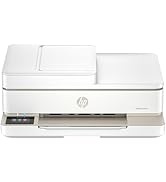
🖨️ Print smarter, save bigger—your all-in-one powerhouse for home office domination!
The HP Smart Tank 7301 is a wireless all-in-one ink tank printer designed for home offices and small businesses. It delivers high-quality prints at speeds up to 15 ppm black and 9 ppm color, with a cartridge-free refill system and 2 years of ink included for ultra-low running costs. Featuring AI-enabled print optimization, automatic duplexing, a 35-page auto document feeder, and versatile connectivity options including Wi-Fi, Ethernet, and USB, it combines professional functionality with user-friendly controls and robust security features.


| ASIN | B09CJ2V6WM |
| Additional Printer Functions | All In One |
| B&W Pages per Minute | 15 ppm |
| Best Sellers Rank | #8,906 in Office Products ( See Top 100 in Office Products ) #20 in Ink Tank Printers |
| Brand | HP |
| Built-In Media | HP Smart Tank 7301 All-in-One Printer; HP 32XL Black Original Ink Bottle; HP 31 Cyan Original Ink Bottle; HP 31 Magenta Original Ink Bottle; HP 31 Yellow Original Ink Bottle; Ink caution flyer; Setup guide; Reference guide; Regulatory flyer; Power cord |
| Color | Gray |
| Color Depth | 24 Bits |
| Color Pages per Minute | 9 ppm |
| Compatible Cartridge | HP 32XL 135-ml Black bottle (~6000 pages), HP 31 70-ml Cyan bottle (~8000 pages), HP 31 70-ml Magenta bottle (~8000 pages), HP 31 70-ml Yellow bottle (~8000 pages) |
| Compatible Devices | Laptops, PC, Smartphones, Tablets |
| Connectivity Technology | Wireless |
| Control Method | App, Touch |
| Controller Type | Amazon Alexa, Android, Hand Control, iOS |
| Customer Reviews | 3.7 out of 5 stars 1,865 Reviews |
| Display Type | LCD |
| Dual-sided printing | Yes |
| Duplex | Automatic |
| Hardware Interface | USB 2.0 |
| Initial Page Print Time | A4 Black 14 sec; A4 Color 16 sec Seconds |
| Ink Color | Black, Cyan, Magenta, Yellow |
| Item Dimensions D x W x H | 14.33"D x 16.83"W x 9.46"H |
| Item Height | 9.46 inches |
| Item Type Name | Inkjet Printer |
| Item Weight | 17 Pounds |
| Manufacturer | HP, Inc. |
| Maximum Copies Per Run | 99 |
| Maximum Copy Resolution Black and White | 600 dpi |
| Maximum Copy Resolution Color | 4800 x 1200 dpi |
| Maximum Print Resolution Black and White | 1200 x 1200 Dots Per Inch |
| Maximum Sheet Capacity | 250 |
| Maximum print Resolution Color | 4800 x 1200 Dots Per Inch |
| Media Size Maximum | 8.5 x 14 inch |
| Model Name | ST 7301 AIO |
| Model Number | 7301 |
| Model Series | Smart Tank 7301 |
| Number of Drivers | 2 |
| Number of Ethernet Ports | 1 |
| Number of Trays | 1 |
| Other Special Features of the Product | Auto Document Feeder, Borderless Printing, Display Screen, Double Sided Scanning, Refillable Ink Tank |
| Output sheet capacity | 250 |
| Paper Size | 3 x 5 to 8.5 x 14 Inches |
| Print media | Card stock, Envelopes, Glossy photo paper, Labels, Paper (plain) |
| Printer Connectivity Type | Wireless |
| Printer Output Type | Color |
| Printer Type | Inkjet |
| Printing Technology | Inkjet |
| Processor Count | 1 |
| Resolution | Black 1200 x 1200 rendered dpi; Color 4800 x 1200 optimized dpi color (When printing from a computer and 1200 input dpi) |
| Scanner Type | ADF, Flatbed |
| Series Number | 7300 |
| Special Feature | Auto Document Feeder, Borderless Printing, Display Screen, Double Sided Scanning, Refillable Ink Tank Special Feature Auto Document Feeder, Borderless Printing, Display Screen, Double Sided Scanning, Refillable Ink Tank See more |
| Specific Uses For Product | Home and small business |
| Total USB 2.0 Ports | 1 |
| Total Usb Ports | 1 |
| UPC | 195908302407 |
| Warranty Description | One year limited hardware warranty from the date of purchase; user replaceable parts have separate warranty periods. |
| Warranty Type | Limited Warranty |
M**E
Nice printer and fairly easy setup
This thing was pretty easy to set up. I'm not big on using a smart phone for setting up computer peripherals so I ignored that part in the Setup Guide. Since I planned to connect my printer with a USB cable, I just skipped ahead in the Setup Guide to the Manual Installation instructions. The first step is filling the ink tanks which is pretty simple and takes only a few minutes - make sure you follow the directions. Then came the first hiccup - you have to install 2 printheads onto the print carriage. The tiny picture in the book wasn't much help in figuring out how to put the printheads in place. But take a breath and just examine the things for a minute and you'll figure out how to snap them into place (they only go in one way and the printhead cover won't close unless they are correctly installed). If, like me, you are using a USB cable to connect the printer, I'm not sure why you have to download and install the "HP Smart Software". But I did as instructed and followed the instructions which weren't much more than "plug in the USB cable" and you are ready to go. Then hiccup #2: for my first print job, I attempted to print a picture from the Windows Photo app. Click on "Print" and nothing. Oh No! But then I noticed a error message at the bottom of the print dialog - something about a conflict with another device. I then turned OFF the switch labelled "Let the app change my printing preferences" and voila! The printer sprang to life and printed my picture. And no problems since. This could have easily been a Windows issue having nothing to do with the printer, but I mention it just in case it happens to someone else. HUZZAH! 1. Simple setup for USB connection. 2. color prints look very nice (see my Caveats below) 3. small physical footprint for an All in One - respectful of the limited real estate on your computer desk 4. Fairly zippy print speed 5. Two sided printing works fine 6. I really like the automatic "Sleep Mode". You don't have to worry about turning off the printer when you are done with your job. And it will instantly awaken when you need to print something. I just leave the printer ON 24/7 and let it sleep away when I'm not using it. 7. This model has an ID Card copying feature. It will copy both sides of an ID card and print both sides to the same sheet of paper. I haven't tried this, but the feature looks useful (you will have to download the 104 page User Guide from the HP web site to see how this function works). 8. This printer will print envelopes but, again, you will need to refer to the 104 page User Guide to see how to load the envelopes. GRUMBLE: 1. Buttons on the Control Panel are not well marked and difficult to see - get out your label maker! 2. print head installation a little tricky 3. Copy function (including the auto feeder) works well but copying is a little pokey. These petty grumbles will not let me waiver from my 5 star review. A couple of caveats about my review: 1. As I set my printer up with a USB connection, I didn't attempt to set up, or even mess with, the WiFi mode. 2. I've never used an Ink Tank printer before so I can't comment on that function. But filling the tanks was quick and simple. A couple of other reviews had complaints of spilled ink, but the supplied ink bottles appeared pretty spill proof to me. Even turning them upside down to fill the tanks didn't result in a single spilled drop. 3. The few color prints I have made are documents and cartoons I printed on plain paper. I have not attempted to print any photo quality prints on photo paper so I can't comment on the print quality of photos. 5. I have no need for the SCAN function, so I've never tried it. Finally, you will benefit from downloading the comprehensive 104 page User Guide from the HP Support web site. It's in PDF format so you can read it from Adobe Acrobat Reader.
K**Y
DO YOU LOVE PALOMA'S?!
Do you love Paloma's? Well you better because this printer will drive you to drink! It is so frustrating...I've had this printer 2 years and just finally got around to writing how just awful it really is. I should have returned IT after I first bought it but it but I thought maybe it was user error and then finally it was just too late. IT IS LOUD. Do not buy this printer if you have napping children in the home or value your sanity. IT SHAKES THE WHOLE DESK. Do not buy if you are working at a desk, it will shake your monitor off. WIRELESS ONLY WORKS ON THE FIRST PRINT JOB. The wireless loses connection all the time and you have to turn it off, back on, maybe back off and then finally it will connect. But after the 1st print job you're done. It will not connect again...buy a USB cable for consistent printing. WHERE'S THE ON-OFF BUTTON? Never found it, so the 12 times you need to turn it off and back on you're crawling under the desk with a flashlight. GREAT INK VOLUME. It holds a lot of ink but you have to have this printer completely level, you can't move it once filled. If you want to change locations it says to suck the ink out...impossible. PRINT QUALITY...GOOD COPIES NEEDED? There's no touch screen so if you need 100 copies...guess how many times you're hitting the print button? 100 times. You can drink quite a bit of tequila before getting to 100 finger taps. TOP LOADER NEVER WORKED. The top loader has never worked...it came out of the box defective but I didn't realize it until it was too late to return. You have to lift the lid and scan or print one page at a time. Where's that pitcher of Paloma's? COLOR QUALITY: GOOD TOP ONLY OPENS 1/2 WAY. So the top lid only opens half way up and makes a terrible plastic on plastic "pop." It's only a matter of time before it snaps off. HONESTLY: I only use this printer when I want color copies, you have to use a USB cable attached to your computer, that way you can type in 100 copies, select dual sided printing, and you can finally drink your Paloma in peace. Do Not Let It Run Out of Paper!! You’ll be so frustrated you’ll just drink tequila straight out of the bottle. VALUE: horrible. DO NOT BUY...
C**I
Best HP Printer I Have Owned
I have purchased several HP printers over the years. This one is by far the best one yet. With previous printers, the cost of the replacement ink cartridges would quickly exceed the cost of the printer itself. And the ink cartridges would not last very long; or end up clogging. The ink tank technology on this printer is awesome. I have gone through several packs of paper and the ink levels have barely dropped. Also like the fact that this printer has an Ethernet port, which I am using to avoid any wireless connectivity issues. If another one of my older HP printers craps out, I am buying another one of these. UPDATE AUG 2024 - it happened...my HP 6970 quit printing cyan ink. Tried installing new printhead but that didn't fix it. So I bought another 7301 to replace it. Have printed reams of paper with the original 7301 and haven't had a bit of a problem with it. When my HP 8600 finally dies, guess what I will replace it with? Note: All of my printers are connected to my network with Ethernet cables. If you are having WiFi connectivity issues, it could be due to too many other wireless networks near you interfering with your network's signal. Try connecting your printer directly to your modem or router using an Ethernet cable and see if that makes it work for you.
R**N
Pretty Good
I bought this because refills are cheap. I had a Canon color laser printer and each cartridge was $110 per color (RBY+Black). I used remanufactured toner and the colored toner would streak. It would even streak if I specifically said Black only as I hit print. For years I put up with the streaking until my daughter cried because her project had streaks. I wanted something that my mind is not calculating cost per print every time I hit print. It was this or the Epson EcoTank. I did not look at the Canon due to PTSD, even though it was a quality printer sans the toner situation. I shied away from the Epson because I had one 20 years ago but it clogged due to inactivity. I chose the HP due to its reputation, ADF, and familiarity with the HP brand. HP is VERY good at easily finding software on their website. I find drivers for items that are over 15 years old. The setup was pretty easy even though I went the Manual setup route. I REFUSE TO REGISTER TO SET UP ANYTHING. If you don't register, the manual was pretty clear if you are halfway decent with any setup instructions. After doing everything and plugging it into my wired network, the software downloaded found the printer without issue. If you go wireless, you might have to register for an account. The print quality seems good, not as crisp as my old laser, but that's expected. The ink was SUPER easy to fill. I was worried about spillage, but the bottle has to be pushed into the "Pin" to puncture the seal and fill. It was clean and simple. I don't know if topping off the ink will work, but I'm not there yet. If you want the colors to "POP", you might need to invest in better paper. I am using office quality which is not great at all for ink. 96 brightness or above is what you will want with it designed for ink for best results. If you are printing just text, who cares? Cons: The PIN number you need is under the scanner glass. You need it frequently, especially if you access the admin portal of the device. I made a label and affixed it to the side. The paper tray is dainty. I expected a guide to butt up against the back of the paper, closest to where you would stand. Nope, it's just there. My old printer had a guide that was adjusted to keep the paper from flying backward. Time will tell with this. Double-sided scans are manual. This means you scan one side and then flip the paper and scan again. My old printer did both sides in a single pass. This is not a deal breaker, but is something to consider if you need it vs nice to have.
I**T
HP Quality as Expected
I have read a number of reviews and I am stymied by the criticisms. Out of the box I followed the instructions in the manual. Setup was seamless and occurred and appeared as pictured and stated in th manual. I had some issues setting up the Wifi but TBT it was user error. The morning after setting up the printer I needed to reset the Wifi. I am not sure if it didn't wake up from being asleep or something was wrong with the setup. After pressing the wifi button and restarting the unit the connection appears stable and I have had no issues printing from my iMac, iPhone or iPad. The print quality (documents only) is excellent. I have not printed photos yet. The quality of the printer is good. In fact, I am amazed the cover has a slow close feature. My only complaint or wish is that the digital screen contain menus to scroll through for the various setting, most importantly network preferences, like my former printer HP Envy 7640. I do recommend this printer.
O**A
It is very Unique to me
I have used HP printers for more years than i want to admit. I bought this one to replace my 9 year old Page wide pro. Now i loved that printer even though it was a huge monstrosity and weighed in at over 50 pounds. And it was probably the most expensive printer to feed i ever owned. But it was dependable. I bought this 7301 on a gamble. Never saw a small Tank printer. Had a plotter that used bottles years ago So i figured why not. Now when it arrived i was shocked. It was so light i thought they forgot to put the printer in the box. But it was there. And with it sitting where my behemoth was it looks like a dwarf. Set up was a challenge for me. I am not into this cell phone set up stuff. I don't even use WIFI on any of my printers. I use good old traditional Cat5. Set up that way was a little challenging i will say. But i got it after several different methods. It is a very quiet printer. My page wide would all of a sudden just go through some self test or something and make noises by itself. This little one is very quiet even when it prints. The set up physically was fun. So many different things to remove and find. Filling the tanks was a breeze and the print quality i have gotten is excellent. Not sure if it will last 9 years like the last one but at my age not sure i will either. I would say if you want a nice fully functional printer with Cat5 connectivity, but this little guy. Everything works well and i hope to have it for a long time. And the replacement ink is very reasonable.
D**E
Highly automated but complex
It turned out that I got a defective printer that got replaced but in the beginning the automated process wouldn’t work because of the defect. It took two days of serious effort and frustration to reach a human who ended up being very patient, calmed me down, and found the cause. The replacement is working fine but if I had to do it all over again….?? A tiny lcd display is no substitute for a user friendly, multi featured touch screen. This printer’s automation is via its app. I prefer the good old days. UPDATE: 2025_June My printer has failed again (after 16 Months) and needs to be replaced again, but return method is unacceptable. After many days without printing, trying to solve the problem, waiting for an RMA label, packing and shipping the defective, then waiting even longer for a replacement printer is nuts! Asurion warranty uses the same process, so has not been an acceptable solution to the problem. HP has now RENEGGED on replacing printer arguing that I ALREADY recv'd a replacement (the one to resolve the original DOA brand new printer. FURTHER UPDATE: This 'Protection Plan' proved worthless for me. I purchased it for 3yrs. When I first ordered the HP 7301 All-in-one printer, I never got the first one to work. After HOURS of debugging and online support from HP it was determined that the printer was defective and needed to be replaced (FIRST printer never did setup or work AT ALL). Recently that printer failed again after about 13 months but well within the Asurion 3yr coverage. I then spend MANY HOURS over three days before being told once again by HP that the printer needed replacement and that they WOULD replace it. After many more hours escalating to a supervisor, since I had no means to package up and return the printer myself, that they would send a replacement in advance and allow me to send the defective back in the new printer's box. I had been without printing at this point for SEVEN DAYS. After I waited TWO MORE DAYS for them to 'check inventory' for the same model, I got a call from HP informing me that I was not going to get a new printer because: I HAD ALREADY HAD ONE REPLACEMENT and that was ALL I WAS ENTITLED TO. Of course this was the original printer to replace the brand new one that was DOA on its initial delivery. I lost all count of the massive number of hours I had invested to this point before HP RENEGGED on their commitment made to me more than twice. The current status is that I have a totally useless printer, had to buy a new printer, and have been stiffed for the cost of the HP printer AND the so-called Asurion 'Protection Plan'. In my opinion, Asurion put me through every possible hurdle to deny coverage under the plan, then after agreeing multiple times to send me a replacement (I have all the chat transcripts), they RENEGGED on coverage, which I believe was their intent from the outset. The notion that I had ALREADY received a replacement and was therefor ineligible for another is ABSURD on its face. The original replacement was needed to resolve a brand new DEAD ON ARRIVAL printer!!!
L**.
Love it, so far!
I work for a small business as HR/Office Manager/Payables, so running to our main office printer all day, especially when I was printing confidential documents, was not working anymore. I purchased this printer for my desk and so far, I love it! I read a lot of reviews for a lot of printers and I'm really happy I went with this one. It's only been a week, so I can't speak to the reliability over time. Pros: ADF: I scan multiple documents regularly, and the ADF has worked great every time. Scanning Glass: Works flawlessly, great quality scans. I can also do multiple scans back-to-back and save as one PDF. Ink: With the volume I print, I would have been spending hundreds a year on traditional ink cartridges, the cartridge-free is 100% the way to go if you print regularly. Copier: Works great, I can copy from the scanning glass or the ADF in color or B&W by pressing a button on the printer itself Printing: Prints surprisingly fast for a desktop printer and has great quality. Cons: Wi-Fi Setup: Upon setup, I wasn't able to connect the printer to our Wi-Fi network. I'm sure it could have been done with some additional troubleshooting, but I just used a USB cord (not included) to connect directly to my computer. The more secure route if you don't need this printer to be used by multiple devices. Printing: The ink saturation was too much. The ink would smear when I tried to highlight something. I changed my print settings to the "Save Ink/Toner" option and that has fixed the issue. *Note: To scan documents, you have to open the HP Smart app on your computer/device and select the scan option, and cannot be done from the printer itself. For some people, I can see how that would be an issue, but the app has worked great and hasn't been an inconvenience at all.
Trustpilot
1 week ago
5 days ago