🌍 Connect. Share. Print. Anywhere your work takes you.
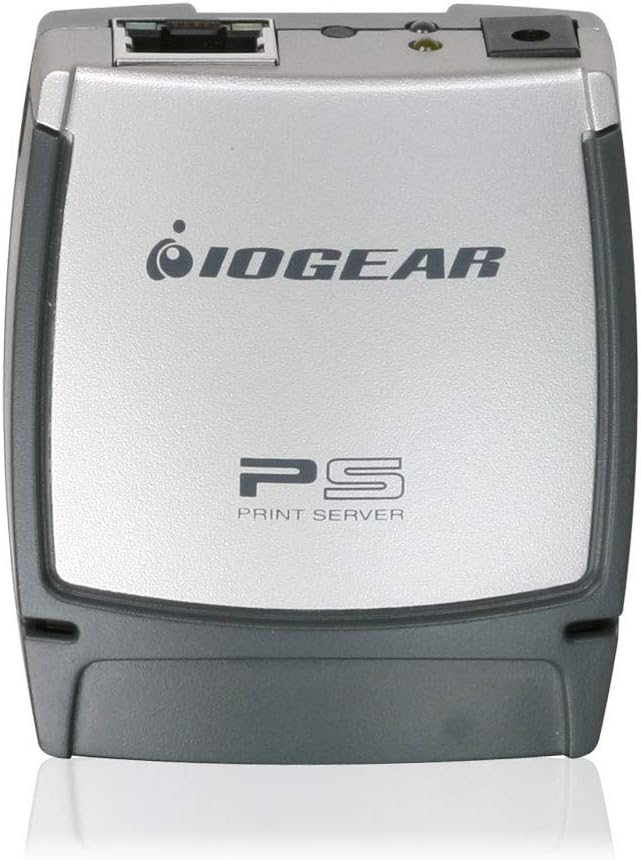
The IOGEAR 1-Port USB 2.0 Print Server GPSU21 transforms any USB printer into a network-shared device, enabling multiple users to print from any computer on the LAN or Internet. Featuring USB 2.0 compliance, auto-sensing 10/100Base-T Ethernet, and broad OS compatibility, it’s designed for professional environments seeking efficient, flexible printing solutions. Supported by a 3-year warranty and lifetime US-based technical support, this compact device ensures your printer is always accessible, no matter where you are.


| ASIN | B000FW60FW |
| Best Sellers Rank | #3 in Computer Networking Print Servers |
| Brand | IOGEAR |
| Color | SILVER COLOR |
| Customer Reviews | 3.9 3.9 out of 5 stars (1,476) |
| Date First Available | May 30, 2006 |
| Department | COMPUTER-OTHER -> COMPUTER ACCESSORIES |
| Is Discontinued By Manufacturer | No |
| Item Dimensions LxWxH | 2.5 x 1 x 2 inches |
| Item Weight | 1.92 ounces |
| Item model number | GPSU21 |
| Language | English |
| Manufacturer | IOGEAR |
| National Stock Number | 7025-01-608-1027 |
| Product Dimensions | 2.5 x 1 x 2 inches |
W**.
Works extremely well... setup not as straightforward
The user's manual that came with this product provides incorrect installation instructions. There is no CD that comes with this product. You do NOT need to change your computer's IP address so that it can be on the same default subnet as the print server! If you have a DHCP server on your network, the print server will accept an IP from your DHCP server. I downloaded the setup software from IOGear's website and it was written for WinXP! I assumed that it should be compatible with Win11, which is what I am running, but the software failed to do anything useful. I uninstalled the software. You do need to make sure that your computer has the printer drivers already installed, and I would also strongly recommend that you assign the print server a static IP address. The steps you would need to take to connect to the print server / printer are not obvious and not documented in the user's manual. I reached out to the IOGear support line and they were able to walk me through the configuration steps needed. After the call, I was able to successfully print a test page.
L**S
Works great simple to get working!
Does exactly what it's suppose to do! Don't know why people have trouble getting it to work....ohh wait they're using windows ( ugghh ). But even my 5 year old router identified it and assigned it a permanent IP address. No, this type of device is not often plug and play but still takes very little effort to get working.Took exactly 4 minutes to get it connected. It fixed my mistake of buying a laser printer that was only USB.. So if you hook it up and it doesn't work, go online and you'll find what you need to know to get it working. And once it's recognized, it will just keep working. i've used print severs for years to network printer and they have always worked well. A Windows tip: If it's not recognized, ad the device as a generic network card and Bingo! Your printer will be seen.
N**M
After trial and error, works with Vista
I bought this to connect my Canon MP760 to my two notebook computers, one running XP and the other Vista. After connecting the device to my printer and my router, I started the install CD on my XP notebook and ran the wizard, accepting all the standard options. The software finished and reported a success, but I couldn't print anything. Then I noticed (after being clued in by reading someone else's review) that the printer needs to be set to Online in the printers control panel. After doing this my XP notebook could print. However it wasn't so easy on the Vista notebook. Although the CD software seemed to run fine (after giving it permission), no amount of tweaking got anything to print. Items would sit in the print queue forever, and zero bytes would by shown sent to the printer. It should be noted that IOGear nowhere says this software is compatible with Vista, I can confirm it is not, and I couldn't find any Vista driver on the IOGear website. Now the good news. I discovered there is a much simpler way to install this device. Just use the instructions for IPP that are given at the back of the manual. These instructions are given for setting up to print over the internet, but the same technique can be used to set up on a local home network. With a home network it all boils down to: tell Windows you are installing a network printer and type in the URL as [...] (your IP address will be different) then select the print driver and you are done. What it so hard about that? Nothing. And this method DOES work for both Windows XP and Windows Vista. So it took me about 2 hours of trial and error, but now it works great. The device can be managed and configured using a web browser, just by typing in its IP address. The CD-ROM software that comes with it is not needed at all. The only thing the CD sw may help with is discovering the IP address the device is using, but that could also be done by viewing your router's status. I should mention since my router uses DHCP and serves addresses in the range 100..199 I decided to configure the print server with a fixed address of 90. Using a fixed address is the logical thing to do in this setup, because you don't want DHCP to ever change it. Again that can be configured using the device's web setup page. After all is said and done, I sort of expect hiccups when installing a product like this, and I am judging mainly based on the final outcome: this is a great little product for a great price. I'm very happy with it.
J**T
Poor design, even worse instructions
I ordered this product in the hopes that it would end the constant harassment from the Mrs about having my PC turned off when she wanted to print. The product looked pretty good and seemed like a perfect solution. To my dismay, reality was much more painful. We have 2 PCs, one laptop and an iMac on our network and when I opened the directions to "Istall on a Mac" I found the following listed as a first step. (After physically plugging the print server into the printer and hub. Open your printer dialong and input the IP address of the print server.....well, just what IS the IP address this thing sets up for it self? Good thing I had a windows PC that could take their installation CD. I figured I would install on the Windows PC first and then move back to the Mac. All was going well with the install until I selected which printer was going to be used on the server. After selecting the printer I was treated to another extremely helpful message...and this is actually how it was written. "The printer segent that was you selected is not the same as the print server". Nice error message, got it on the other two windows machines as well. Went the the manufacturer's web site and decided to check out the support/faq for this device. Guess what? There were zero articles about this device. None! I quick search of the web netted me the cause of this error. The printer I have (an HP Photosmart 8250) is not supported by this product. Would have been nice to find that out before I ordered. Amazon's return was as easy as ever, so I can't fault Amazon in any way. If you own any newer printer, aviod this thing at all costs. Firmware is dated in Feb 2006 and there are no updates for it at this time.
N**A
very impressive and easy installation. would like to purchase in other requirements those are not having Ethernet port.
L**Y
COMPARTI EN RED MI IMPRESORA DE TANKES MY FACIL Y RAPIDO COMPATIBLE SIN PROBLEMAS
S**N
works fine with latest HP printers in Server 2003 environment.
S**L
fonctionne superbe bien avec win11 faut seulement aller installer le logiciel IOGEAR GPSU21 et de selection votre imprimante déja installer au par avant et c'est fait
G**E
This device only seems to work with PC and does not support airprint. Last firmware is from 2017 and there does not seem to be an update
Trustpilot
2 weeks ago
2 days ago