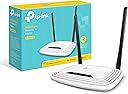
🚀 Upgrade your Wi-Fi game with TL-WR841N — speed, stability, security, simplified!
The TP-Link TL-WR841N is a budget-friendly Wi-Fi 4 router delivering up to 300Mbps on a 2.4GHz band, equipped with two fixed high-gain antennas for enhanced coverage up to 50m². It features easy one-touch WPS security, supports multiple devices simultaneously, and offers a straightforward setup via a web-based admin interface. Ideal for HD streaming, gaming, and stable home connectivity, it’s a proven upgrade over standard ISP routers with a 3-year warranty.


| ASIN | B001FWYGJS |
| Antenna Location | Home, Commercial, Public |
| Antenna Type | Fixed |
| Best Sellers Rank | 1,031 in Computers & Accessories ( See Top 100 in Computers & Accessories ) 7 in Routers |
| Box Contents | Wireless N Router TL-WR841N, Voltage Adapter, CD, Quick Installation Guide |
| Brand Name | TP-Link |
| Colour | White |
| Compatible Devices | Not |
| Connectivity Protocol | wireless |
| Connectivity Range | 50 Square Metres |
| Connectivity Technology | Ethernet, Wi-Fi |
| Control Method | App |
| Controller Type | App Control |
| Coverage | 50 m² |
| Customer Reviews | 4.3 4.3 out of 5 stars (77,534) |
| Data Transfer Rate | 300 Megabits Per Second |
| Frequency | 2.4 GHz |
| Frequency Band Class | Single-Band |
| Is Electric | No |
| Is Modem Compatible | Yes |
| Item Dimensions L x W x H | 17.5L x 11.7W x 3.3H centimetres |
| Item Part Number | TL-WR841N |
| Item Weight | 8.82 Ounces |
| LAN Port Bandwidth | 100 Mbps |
| Manufacturer | TP-Link |
| Manufacturer Part Number | TL-WR841N (UK) |
| Maximum Upstream Data Transfer Rate | 300 Megabits Per Second |
| Model Name | TP-link N300 |
| Model Number | TL-WR841N |
| Number of Antennas | 2 |
| Number of Ports | 5 |
| Operating System | Ja |
| Other Special Features of the Product | Maximum temperature 0 - 40 °C, QoS, Removable antennas, Reset button, Security algorithm: 128-bit WEP, 152-bit WEP, 64-bit WEP, SSID, WPA, WPA-PSK, WPA2, WPA2-PSK, WPS, VPN Support (PPTP, L2TP, IPSec), Web-based management |
| Product Warranty | 3 year |
| Security Protocol | WPS |
| UPC | 845973051242 |
| Unit Count | 1.0 Count |
| Wi-Fi Generation | Wi-Fi 4 |
| Wireless Compability | 802.11b, 802.11g, 802.11n |
M**R
Affordable and great!
I'd suffered and endured the dubious Virgin Media "Superhub" long enough. I decided I'd try a new router after reading all the similar problems on the Virgin Media forums. I didn't want to spend too much money, so reading the generally positive reviews of this router, and that others had even used it for the same reason, I went for it. Setting it up was incredibly simple, although I have had previous experience. But honestly the hardest part was probably setting the old VM box to "Modem" mode.. Anyway! Afterwards I wired in this new router, logged on to it wirelessly, went into its admin menu, clicked the automatic setup wizard and.... Bosh. Done! I didn't bother with the enclosed CD, I guess it would've installed unnecessary gunk on my PC, I have no idea what's on it. So setup took literally a couple of minutes, including untangling wires. Really easy. Performance has been fantastic. I immediately noticed a dramatic improvement over the old VM box. Before I'd have to click on a link on my wirelessly connected PC, and wait. Then perhaps click again. Same with all other devices. It was like the router just wasn't bothering to connect to the internet. Now it works properly. Ping and download speeds are epic. Before the ping could be pretty high, and download speeds could sometimes be fast, but somewhat variable and inconsistent. Now downloads are fast and rock steady. We have an xbox hooked up via wireless, in a bedroom the opposite end of the flat (It's a late 70s build with some pretty thick concrete walls to get through). It used to hover around the 1 bar of signal on the xbox "Find Wireless" section. Now it hovers around the Maximum point, occasionally dropping only by 1 bar. Playing games had gotten to the impossible point, and party chat was a stuttering mess of choppy voices and impossible to understand. Now, perfect. So signal is strong and very dependable. I stream media to a wireless radio, xbox etc. Worked perfectly out of the box. My wireless printer that had seemed very temperamental before is now fully co-operating. I read a couple of reviews where people said they had to reset... Mines been on permanently for a few weeks now without a single issue. I did ensure that I had the latest firmware on the TP-Link website, turns out it already had it installed. Maybe that helps? Anyway its behaved perfectly for me. So overall I rate this a fantastic router for my pretty basic needs. £20 for this is a bargain. It made my Virgin Media internet work how it was supposed to be. How Virgin who had such a fantastic reputation for speed could then couple that with such a poor piece of equipment is unbelievable. But this solves it. It's just a shame that I have to keep my stupid, large "Superhub" hooked up in modem mode alongside this great router. Buy it. It's great.
J**N
Inexpensive, easy to configure and has proved reliable - a great product!
I bought this to use as a replacement for our Virgin Media Super Hub as, when our housing estate was built a couple of years ago, most people took on Virgin Media for their broadband services as they had a special offer for all new owners at the time. This now means that within a few hundred feet there are countless Super Hub ID's and our connection has become more and more unreliable. We have had a couple of replacement Hubs from VM but they haven't really cured the problem so I decided to change tack. Having read some of the reviews for TP-Link Cable WiFi Router and looking at how other people solved poor VM WiFi problems I decided to purchase for installation our loft space with a view to making the WiFi signal in our home more robust. One the router arrived and was out of the box I switched the Super Hub into Modem mode, ran a CAT5 cable from the Modem port up into the loft space, plugged it into the TP-Link Router and turned on. For first time use I used a wired connection with the laptop to log into the TP-Link Admin page and within a couple of clicks of a mouse the router had found the cable model and the connection was live. A few more clicks later and I had configured the WiFi as we would want it and all of our devices found the new SSID quickly. I then reviewed the basic security setting and made a few simple changes to make sure the router was as secure as I needed to be and, after a quick reboot, we were ready to go. The total installation time was no more than fifteen minutes and that included putting a couple of screws into a joist to mount the router for best signal strength. The router has been in place for about a month now and so far it has been excellent. Unlike the previous Super Hub there has been no drop out or no need to reboot (albeit I believe there is a setting where you can do this on a daily basis at a set time) and the connection has been very stable. We run 2 PC's, 1 Laptop, 2 FireTV's, 3 Mobile Phones and a CCTV system that can be viewed live and the router is dealing with all of this in it's stride. It not unusual for both Fire TV's to be streaming at the same time without an issue and our work laptop can be quite heavy on data when using a VPN connection and, again, the router has been trouble-free. There are lots of other features of the product such as Guest WiFi, Bridges, DMZ's etc. which are all over and above what we really need but am pleased the features could be used should our requirements change. All in all, for the price we paid and the issues we were having with a Super Hub, this is an excellent piece of kit for a home WiFi setup. It was quick and simple to set up, provided a good level of security for our devices and so far has been faultless.
P**N
Allt fungerade som det skulle! Snabb frakt och bra produkt!
H**1
Este router neutro TP-Link TL-WR841N es perfecto para usarlo en casa. Dado el precio y el público al que va dirigido, tengo que decir que es un equipo inmejorable tanto en precio como en prestaciones. Mención especial al Wi-Fi, pues ofrece una señal inalámbrica de gran alcance. Pasando a analizar el firmware, diría que el que viene de origen ya ofrece muchísimas más opciones que cualquiera de los routers que ofrecen habitualmente las compañías de telecomunicaciones. Al parecer, para un uso más profesional, quizás este firmware se queda algo corto. Según he leído por internet este router cuenta con un hardware estupendo que de cierta manera queda un poco desaprovechado por el firmware que lleva instalado de origen. Así que podría llegar a considerarse casi obligatoria la instalación de alguna versión del famoso firmware de DD-WRT que es completamente compatible y amplia muchas de las posibilidades de este router. Pros: - Fácilmente configurable. - Señal inalámbrica de gran alcance. - Económico. Realmente es un precio de derribo. - Soporta OpenWRT y DDWRT. Ideal para aquellos a los que les gusta trastear. Contras: - No lleva ningún puerto USB, por lo que no podremos crear un NAS o compartir una impresora. - Tanto los cuatro puertos ethernet para LAN como el puerto WAN, son 10/100Mbps (son Fast Ethernet, no Gigabit Ethernet). La necesidad de comprar un router me vino dada a una serie de viajes que iba a realizar, en los que sabía que sólo iba a disponer de una sola toma de ethernet y que obviamente no iba a ser suficiente para cubrir mis necesidades de conectar más de un dispositivo (tanto por ethernet como por Wi-Fi). Valoré la adquisición de un router de viaje, sin embargo el sobrepeso y las mayores dimensiones de este frente a las diferentes opciones diseñadas exclusivamente para viaje, no me suponían mucha diferencia, ni en lo relativo a lo económico, ni a lo relativo a las prestaciones. Por ello, me decanté por un router completamente funcional como este, y que bajo mi criterio personal no supone unas dimensiones ni peso exagerados para llevar (obviamente depende de la naturaleza del viaje, que en mi caso era establecerme en varias residencias de estudiantiles).
E**C
Instructions for setting up the TPLink WR841N wireless router as a repeater: This is a great unit for a ridiculously low price. It can be used as a repeater (a.k.a. WiFi range extender). Setting this unit up as a repeater is pretty simple, but the manufacturer doesn't provide step-by-step instructions. I noticed some other instructions posted in these reviews had a number of steps that were not necessary, and were missing some steps. Being an Engineer, I couldn't help but proposing an improvement... These instructions assume you are connecting to a WiFi access point (AP) with a working Internet connection. Abbreviations: [example] = example values used during my setup. Yours might be a bit different. SOURCE-AP = the access point / router generating the wireless signal you want to repeat. REPEATER-AP = the access point / router repeating the wireless signal, the one that we are setting up. SOURCE-NET = the SSID (network name) of the wireless signal you want to repeat. REPEATER-NET = the SSID (network name) of the repeated wireless signal. Before starting, gather the following information: - the LAN/wireless side IP address of the control interface for the SOURCE-AP [192.168.3.1] - the subnet the SOURCE-AP is using on the LAN/wireless side. [192.168.3.x] - the SOURCE-NET name [GROUND] - the encryption type and password [WPA-2 PERSONAL, xxxx] - the channel the wireless signal to be repeated is on. [3] To determine the LAN/wireless IP address and subnet of the SOURCE-AP, look at the IP address and default gateway of a device directly connected to the SOURCE-AP. (Open the Network connections folder, click change adapter settings, and view status and then details in Windows). For the channel, it is preferable to go to the SOURCE-AP and set the channel to 3 instead of "auto" so it does not change, and uses an unpopular channel likely to have less interference. If you don't control the SOURCE-AP (e.g. you are connecting to your neighbor's WiFi), you can find out what the channel is during the setup steps below. Here we go: 1. Plug the power into the REPEATER-AP. If any settings have already been changed on the device, press and hold the reset button on the back for ten seconds until all lights are illuminated to indicate reset happening. Reset is not necessary if the unit is fresh out of the box. 2. Plug a PC into a LAN port on the REPEATER-AP with the supplied LAN patch cable. I used my laptop. Make sure the LAN adapter is set to get an IP address automatically. (Open the Network connections folder, click change adapter settings, and view properties in Windows). Make sure the LAN adapter is the only one enabled. Disable the wireless adapter. 3. Open a browser and go to tplinklogin dot net (replace dot with a . - amazon doesn't allow URLs here...) or 192.168.0.1, the default address of the control interface of REPEATER-AP. The default username, password is admin, admin. Don't do the quick setup. 4. Click "Wireless" on the left column menu. On the Wireless Settings page that appears: a. Under the dropdown list for "Channel", select the channel the wireless signal to be repeated is on. [3] If you don't know, skip this step and the unit will force you to select the correct one after the "Survey" step below. b. Click the "Enable WDS bridging" checkbox. c. Click "Survey". A list of SSIDs appears. Click "connect" on the one that is SOURCE-NET. [GROUND] All of the fields are automatically populated except for the password. d. Enter the password and click Save. Wait ten seconds for the processing to finish. e. At the top of the page beside Wireless Network Name, enter an name for REPEATER-NET [R1] and click Save. 5. Click "Wireless Security" on the left column menu. Select Personal WPA2-PSK, AES encryption and enter a password for REPEATER-NET. 6. Click "DHCP" on the left column menu. Click the DHCP disable radio button. Click Save. Ignore the reboot warning. 7. Click "Network" on the left column menu. 8. Click LAN. Change the IP address to one in the SOURCE-AP subnet that is not being used by any other device and click Save [192.168.3.200]. A reboot warning will appear. Click OK and let the unit reboot. 9. The address in the browser will magically change to the IP address you entered in the previous step. This is the new IP address for the control interface on REPEATER-AP. You will be prompted to log in again. You should now have Internet connectivity! There is no "half-hour waiting period" others have noted. Perhaps that was due to misconfiguration. Open a new tab in your browser and go to news.google.com to verify. Wireless devices can now connect to REPEATER-NET. Wired devices can connect to REPEATER-AP. Both get Internet access through SOURCE-AP. Ain't life grand? Troubleshooting: It is possible that it may take some time to negotiate the wireless link between SOURCE-AP and REPEATER-AP. Wait two minutes, then refresh the news page. If that doesn't work, power REPEATER-AP off and on. Try news.google.com again. If that doesn't work, wait two minutes, then refresh again. If it still doesn't work, enter the LAN/wireless side IP address of the control interface for the SOURCE-AP [192.168.3.1] in a browser and hit Enter. If you see the control interface for SOURCE-AP, the wireless link is working! Try entering an Internet IP address, like [...] (one of my sites). If you see a page with content loaded, you have Internet connectivity (hooray), but your computer needs to be told a DNS server to use. In Windows, open the Network connections folder, click change adapter settings, properties, IPv4 properties, advanced, and in the Gateway area type in the IP address of the SOURCE-AP [192.168.3.1], click OK, OK, Close and try again. But none of that should be necessary. I have written these instructions with the unit beside me, following my own instructions and it worked first time. I have actually gone beyond these instructions to set up a chain of four of these units to provide wireless coverage from the basement to the fourth floor of a 150-year-old church with stone walls. And it worked! Good luck! P.S. Don't forget to go back in to REPEATER-AP and change the password. The menu item is hiding under System Tools on the left.
R**L
Cumple su función , por el precio es muy bueno , mi módem sólo tiene salida ethernet pero con este TP-LINK puedo conectar muchos aparatos vía wifi y jala excelente, distribuye muy bien el internet aparte de que tiene más salidas para aparatos vía ethernet, llegó en tiempo y totalmente nuevo y en caja sellada, así que recomiendo ampliamente a el proveedor y a Amazon, tiene varias funciones como la de escoger que aparatos wifi (con la Mac de cada aparato) se conecten a internet y también puedo seleccionar que aparatos no quiero que se conecten a internet, además de que su configuración es sencilla, y se puede poner en español para configurarlo, hasta la fecha ya a más de un mes de usarlo funciona excelente. Por el precio la verdad estoy feliz de haberlo comprado, no es un repetidor hasta donde tengo entendido, como les comento, lo conecte vía ethernet para que mis aparatos que usan wifi puedan tener internet y recalcó que distribuye bastante bien el internet , aparte de que uno puede seleccionar la frecuencia a la que llegue el internet.
A**N
The router TL-WR841N from TP-Link is just an awesome piece of technology at cheapest rate one can imagine. There are a no. of 300N Wifi routers but compared to the price and reliability it is a winner. I've been using it for the past 3 months and the following are my findings about the router: Pros:- - Good looking & compact router. - Super easy to set up. - Web based utility does a good job in controlling the router. - All required instructions for easy setup are provided. - The Stock firmware has a lot to offer. - DD WRT firmware support (Just Google 'DD WRT' for details). However, I was unable to use the feature as DD WRT firmware for V9 is not available. Also it voids warranty. - Physical Power AND Wi-Fi switch present. Which means you can switch off your WIFI alone while letting the router run and manage physical LAN connection. - 4 LAN ports present. - It can also be used as range extender. - Has 2 non-detachable antennas for boosting Wi-Fi. I've installed the router in 1st floor and get 1-2 bars in ground & 2nd floor and just outside on the road. Also my tab shows 1 bar while on the roof top of my 3 storey building. So, its coverage is good to average. Data/Internet speed has little effect on the available no. of bars. - It can share loads of data via Wi-Fi & LAN network. I had successfully converted my tab into Wi-Fi virtual keyboard, mouse & gamepad/joystick. - Wall mounting can also be done. - 3 Years Replacement Warrenty. Cons:- -Well as such no serious problems have been faced till date. My only concern is its white colour which looks great but is likely to get dirty sooner or later. - Unnecessary heating problem can be avoided by installing it in an open space. Overall it is the cheapest router available in the market at present with loads of feature on offer. It is highly recommended for those who want cheap router with reliability, security & loads of features. UPDATE (1/11/15) :- The router has been working flawlessly for a year and a half now. However, I had to go for replacement twice due to no fault of mine but Act of GOD. The service of TP-Link is great. They replaced my router after testing then and there with no question asked. Though I had to carry it to there service center. Also, I can see the price has come down to half (by '600-'700). Hope this update will help in further decision making.
Trustpilot
5 days ago
1 week ago