Desertcart purchases this item on your behalf and handles shipping, customs, and support to Tunisia.
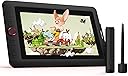
🎨 Elevate your art game—where precision meets vibrant creativity!
The XPPen Artist12 Pro is a professional-grade 11.6-inch drawing tablet featuring a fully laminated screen with 1920x1080 resolution, 8192 levels of pen pressure sensitivity, and 60° tilt support. Designed for seamless connection via a 3-in-1 cable, it offers 8 customizable shortcut keys and a Red Dial interface to optimize workflow. With 72% NTSC color accuracy and an adjustable stand, it delivers a natural, comfortable drawing experience ideal for creative professionals and aspiring artists alike.


| ASIN | B07VZF7ZC9 |
| Active Surface Area | ~105.26 square inches |
| Additional Features | Shortcut Key |
| Best Sellers Rank | #14 in Computer Graphics Tablets |
| Brand | XP-Pen |
| Built-In Media | Cleaning Cloth, Glove, USB Cable |
| Color | Black |
| Compatible Devices | Desktop/Laptop |
| Connectivity Technology | 3 in 1 cable |
| Customer Reviews | 4.6 out of 5 stars 7,686 Reviews |
| Display Type | LED |
| Item Dimensions L x W | 8.78"L x 10.48"W |
| Item Weight | 1500 g |
| Manufacturer | XP-PEN |
| Mfr Part Number | Artist 12 Pro |
| Model Name | Artist 12 PRO |
| Model Number | Artist 12 Pro |
| Native Resolution | 1920x1080 |
| Operating System | Compatible avec Windows 10/8/7 et Mac OS X 10.10 (et versions supérieures) |
| Pressure Sensitivity | 8192 levels |
| Screen Size | 11.6 inches |
| Special Feature | Shortcut Key |
| Specific Uses For Product | Drawing |
| Target Audience | Teacher |
| UPC | 654913038799 |
R**N
From First Stroke to Final Poke
This has been great, overall an amazing product. I had some issues with the first one and a dead pixel; the manufacturer made it right, and either way, it would have been tough to stop using it even with the defect. It makes me want to draw, to paint, to colour, and to engineer. I had always done so much hand, or on the computer with a soulless faceless no-screen tablet, and it was... what it had to be. But switching to this, the size has been awesome, I can free sketch, browse the pages in between work sessions, load it into my DAW when I am making music, and literally do all my adjustments on the fly by touch, it was something I didn't think I needed until I had it, and boom, I love it. Very Responsive on the touch side, the zoom knob, and rotate is nice, heck, I didn't realise on the computer how nice having that rotate would be... do I wish it always made it back to 90° without having to force it? Yeah, that would be awesome, and I can probably adjust a setting to do that, just haven't yet. The ability to adjust the angle is wonderful for however I am sitting, the tactile of the screen is more like a soft hard, not a slick hard, a matte plastic feel, so it doesn't feel slick like some screens. Overall, a great purchase. Set up to draw my first smiley face? Probably something like 15 minutes, and part of that was due to a dirty desk, if you are on the fence, I'd say give it a shot, you might find yourself doing much more, and doing much better than you would have imagined.
T**D
An Excellent Drawing Experience
I want to start off with stating the fact that I am NOT an artist. I am new to drawing and my review is based on the perspective of a first time user of this kind of product. Before I jumped into the world of screen tablets, I had done a lot of research on what to look for in a screen tablet, that is colors, gamut / sRGB, as well as performance, and in some cases, which seems to be quite subjective, how it "feels" when drawing. After watching dozens of reviews of this and other tablets on YouTube, I settled for the XP-PEN Artist 15.6 Pro because I liked the way it looked and I liked its features such as the programmable buttons and dial, and all of the accessories it came with including a stand, a glove, a many-to-one USB-C cable which helps reduce clutter on my small desk and a programmable pen that doesn't require a battery. I also liked the price at the time of $399 (plus some big discounts I got from Amazon) which really helped since, as a non-artist, I had no idea if I'd be using it beyond a test to see if I liked it. The pen-to-screen performance is very nice, it's responsive and has over 8000 levels of pressure sensitivity, I can just say that it feels pretty "natural" to draw with the pen on this screen. I like it a lot. Also the resistance of the pen-to-screen is really nice. It doesn't feel "slidey" like drawing on a phone or tablet (computer) screen, but it also doesn't feel too rough like drawing on paper. I would say it's closer to paper than a phone screen, but the pen glides well and provides just enough resistance to make it feel natural. The colors are very rich and beautiful. I am seeing color saturation on this screen that my actual monitors don't display, or don't display well. In fact this tablet screen is much nicer than all three of my monitors and I'm sometimes tempted to use it as a fourth screen for general use. It's great that all of this is coming from a single USB-C connection which splits into a USB, USB-Power and HDMI. The tablet itself is surprisingly very very light weight. For a moment I was worried over build quality because when picking it up, it felt "cheap", but once I set it up, including the "cheap" feeling stand that it comes with, it all felt good, very sturdy and in fact it started to feel like a quality product. Being able to easily pick this up with little effort and move it around is actually a nice bonus to me. Don't let the lightness fool you, this is a solidly built product. One of the things I worried a lot about was heat when using a screen on my desk, and close to my face. I find the heat uncomfortable and often times I get sick when it's too warm. This is NOT an issue here, I have yet to feel any noticeable heat dissipation from this tablet. This was a major surprise. I spent hours using this tablet with both the single angle the included stand provides, plus the lack of heat dissipating, and I was pretty comfortable the entire time. And speaking of comfort, it comes with brightness buttons to turn up and down the brightness without sacrificing image quality -- my eyes have adjusted well to about 75%. For an entry level tablet, for someone like me, I would say this is perfect. I am having a lot of fun drawing on this, and this is from someone who does 3D modeling and always avoided 2D drawing. Attached is an original character for my Graphic Novel that I've drawn with this very tablet. It's my first ever drawing with a screen tablet and the first one I've drawn since the 90s, after spending the last two weeks watching drawing tutorials and then applying what I've learned to 2D art. I don't want to imply that non-artists like myself can just pick this up and create something nice right away, but as a 3D modeler, I already have a sense of proportion and perspective, as well as having an eye for lighting and shadowing, so I've applied what already know rather quickly using my 3D model as my base image. For the moment (since I only had this for two weeks), this is a 10/10 quality product that I would 100% recommend to anyone looking to get into digital art. It's great for the entry level person, but I'm sure pros would like this as well.
J**E
UPDATED REVIEW - Flickering screen is AWFUL
UPDATE 2: After writing my previous update, it dawned on me that I could probably contact the manufacturer and see if they would be willing to replace my defective tablet. So I did that, and after just a few basic troubleshooting emails back and forth, they requested I ship mine to them and they would send me a new one. As soon as they received mine, they sent out the new one with apparently expedited shipping because I received it within 2 days. Works perfectly! So I've adjusted my review BACK to 5 stars, because it really is a great tablet for the price AND the customer service was fantastic. ----- UPDATE: I've had this tablet for several months now and unfortunately I have to change my review. When I bought it, I had an older Mac that just had a lightning connection, so I had to buy an adapter. Not a problem, except the tablet had some flickering issues. I assumed it was due to the cheap adapter I bought and didn't let it affect my review. I've since upgraded my old Mac to a newer PC with a couple of HDMI ports, so I was excited to get rid of the crappy adapter. Well, the tablet is not only still flickering, but it is actually much worse. I have switched the refresh rate as per multiple suggestions on Google, checked all the connections, etc. I'm bummed that it's so far past the return period, otherwise this would go straight back. ----- ORIGINAL REVIEW: I can't believe this tablet is so great at this price. It's a breeze to set up and very comfortable to use. Customising the side buttons is super easy to do even on the fly, and you can set them per application. The pen tracks extremely well and there's only a noticeable drag when you've set the stroke smoothing pretty high. There is also almost zero paralax (the "space" between where your pen touches the screen and the actual art) and the display is a nice matte finish so there's no glare and the pen doesn't slip around much. You don't have to use the glove, I've just found that it helps my hand glide across the tablet easier, but without it, I have not been accidentally pressing buttons or anything. The size is definitely smaller than you think - I wish I'd gotten the larger one! But only because I've discovered that the screen can actually double as a lightbox, which is super handy since I work in both digital and traditional media. The only downside is that the screen flickers occasionally - BUT that might be the cheap lightning connection I bought and not the tablet at all. It's tolerable so I haven't done anything about it yet. There are a lot of cords, but they're well marked and they're a good length - not too long but not restrictively short. Overall, as I said, I'm shocked that a pen display this nice is so inexpensive. I would recommend this to anyone.
B**E
Amazing tablet for people new to pen displays!
I’ve finally upgraded from my janky old android tablet to this xp pen one! At first when I ordered it I thought it might’ve been too small being only 12 inches but truly it’s to most perfect size for a person who’s new to pen displays! I’m used to my 10.4in android anyway so it works for me! The setup was really easy! It took me less than ten minutes to set up and it worked perfectly. All the side buttons are customizable and you and set certain button setups for different apps which’s I thought was really neat! The pen I personally love so much it has like a soft silicone feel to it which I really enjoy. The pressure works great on the pen and tablet and I did mess around with the pen pressure settings to my liking. The screen brightness is adjustable on the side of the tablet which was so nice instead of having to dig into the driver settings! All the buttons work great, the red dial is so useful you can use it to zoom, change brush size, scroll, rotate etc. I love how customizable this tablet is it’s so so nice. It connects to my computer perfectly fine , my only complaint is my colors are a bit saturated but that’s fine, as they aren’t off completely so it’s not bothering me so much and I bet there’s a fix to it anyways. Also there is a cable you have to connect it with which I knew , it’s just a lot of plug ins which it doesn’t bother me much but it could bother others. Overall I love this tablet so much and can’t wait to create some awesome art work with it! - note my friend has the 15.6 pro and she said it also works amazing it’s just it’s big. So make sure you check your desk space to make sure your tablet can fit on it!
J**.
Good First Tablet, Once you get it setup. M1 Macbook Pro
I'm a photo major. I'm supposed to be using Adobe Photoshop pretty heavily but have always found using a mouse or trackpad to make edits a bit clunky. I decided to try a drawing tablet to see if it would improve my workflow. I went with the XP-PEN because the Cintiq was just too pricey and since I also needed to get some strobes, I found the price range of the XP-PEN more within my budget. I'm happy with the tablet in as much as it does make detail editing a lot smoother and easier. I do notice the parallax that other artist have mentioned but I'm getting used to it. The Driver is fussy. I'm on an M1 MacBook Pro 13 inch. I had to download the driver a few times to get connectivity to work. The software driver kept indicating that no device was connected. After three or four tries downloading the software I finally got the Artist 22R Pro to connect. Unsure if this will be a continual problem but after a few days of using the XP-Pen it hasn't lost connectivity and I unplug my MacBook to take to class on a daily basis. The software driver also doesn't seem to accept command customizations. I regularly fat finger the buttons on the included drawing pen. I like the idea of right click functionality but would love to get rid of the eraser functionality. Whenever I set this up in the driver software, it doesn't seem to save. The pen maintains its default functionality. Perhaps this is operator error, but it's a little frustrating that I cannot change this. I have to output USB-A from my laptop to USB-C on the tablet in parallel with HDMI. USB-A as a result of the limitations of the M1 MacBook's I/Os, I need an open USB-C port for my SSD). The tablet seems to work best as an extended display from the main display on the MacBook. I also run a 2nd monitor off the MacBook Pro; mirroring the XP-Pen. M1 MacBook Pro is incapable of supporting two external monitors natively so I had to buy the Hyper Dual 4k HDMI 10-in-1 (model HDM1H) in order to support dual external monitors. There are other hubs on the market, such as the Pluggable, that will do this job as well. This is more of a complaint aimed at Apple than it is at XP-Pen. Shelling out an additional $200 for a hub stings, a lot (side-eyes Apple), but there are some other problems solved by having the breakout box. I went ahead and calibrated the Tablet with the Datacolor SpyderX Pro (why does everything have to be "Pro" these days?) and the color and density feels very true and sharp allowing me to make accurate color, brightness and contrast assessments. If you are a photographer you should definitely be using one of these color calibrators on your monitors. Overall I do like having the tablet. Once I got past all the fussiness of setting it up the XP-Pen, I found myself actually excited to edit photos. This thing definitely turns a chore into an enjoyable activity. That alone is worth the price of admission. Maybe I'll upgrade to the Cintiq at some point in time.
A**H
Great quality at an even better price
I bought this tablet because I can't afford the Wacom 24". Honestly I was expecting a lesser product and wasn't sure I'd keep it since I've never tried an XP-PEN tablet before.... but it is absolutely phenomenal and I am so glad I made this purchase. I also watched about 4 hours of YouTube reviews before I finally made the purchase, if you're curious about the research that went into this. Pros: - Love the express keys. This makes it a lot easier to just paint without technology getting in the way. - The wheels on both sides are SO USEFUL. I set the left wheel to change brush size and the right wheel to change the zoom. Having two wheels like this has changed my art life. - I don't have to use a keyboard!! With brush size and zoom on the wheels and save/undo/redo/hand tool for moving canvas/copy/paste/ctrl/alt etc set to express keys, I literally do not have to touch the keyboard during an art session. - It might not be 4K but 2K is honestly just fine and allows you to paint very clearly. If you do not normally work on a Retina or other 4K+ screen resolution, you probably won't notice much of a difference. I work on two 5K monitors for work during the day at my non-art job and moving to this for art doesn't bother me at all. - The colors are excellent! When I went to color adjust in Photoshop at the end of a piece, I....... didn't have to do anything. I usually have to adjust colors on a finished piece when drawing in SAI on Windows then moving back to MacOS, and in this case the colors were very well represented. - I use Parallels for Windows programs and I was able to get the tablet to work perfectly in Parallels. More details at the end of this review for any users who are on a Mac but use Parallels. - The extra pen included in the box is AWESOME. It also comes with a bunch of extra pen nibs. - The feel of the screen is pretty great. Some reviewers on YouTube wren't that happy with it but unless you're a professional artist who has been working with a Wacom display every day for years, you'll probably be fine. - They include a nice drawing glove that actually fits alright. - There is a pen holder that you can screw into the right side of the display and they even include a little screwdriver for it. - XP-PEN support is PHENOMENAL. I had a small thing to resolve with my order and they were able to resolve it quickly with no issues and went above and beyond to ensure I was satisfied. They were very courteous and kind. If you have to work with their support team for whatever reason, they'll take care of you! Be patient as their support hours may differ during covid times. - The pen experience is great. I've painted a few 10+ hour paintings now with this display and I've not had any issues. Apparently some Wacom 24" users were not as pleased with the pen experience but I wouldn't know, since I can't afford to drop a couple grand on a Wacom... lol. I think this pen does the job just fine. It's fairly light if that makes a difference to you, but I prefer that. Cons: - When I plug the display into my MacBook Pro, sometimes I have to unplug another monitor for it to register the display. Not a big deal and only really matters if you're using multiple monitors. - The screen has a bit of glare so you may need to close the blinds behind you when working or position the display appropriately. All in all, this is a phenomenal display--especially for the price. I'm extremely satisfied with my purchase and if they ever come out with a 4K version, you bet I'll buy XP-PEN again. You can check out some of the art quality I was able to achieve on Instagram: @microsoftoven. I'm a hobbyist when it comes to art, but this display made my workflow super smooth and I loved every second of it! Parallels pro tips: If you're like me and want to paint in SAI but have a Mac, Parallels is AWESOME for this. Here's how it works: - Run Parallels in windowed mode - Install the PenTablet drivers into Windows as well (the latest version worked for me) - Click the USB icon at the top of the Parallels window and make sure you connect the Artist24 Pro display via USB in this dropdown - Go to mouse preferences and enable short mouse trails (I have no idea why this works) - You might have to toggle Windows Ink on/off - If there is any difference in the pen tip location and the cursor, you can use the PenTablet driver calibration tool or adjust the X/Y values in the Work Area -> Tablet/Display options to match them up. With all of those above steps, I've been able to paint away in SAI with absolutely no problems. Full pressure sensitivity, all express keys and wheel functions.. the whole 9 yards.
M**N
Great value
I don’t know what to say other than this thing is a lot of fun. My daughter (8) loves to draw and has been asking for something like this. I bought it so she can finally translate her talent directly to a digital canvas. After buying I read through the negative reviews and said great what did I end up actually buying. I decided to surprise her and get this tablet connected to an old laptop of mine. Despite what the reviews say, it wasn’t that hard to set up. If you ever spent any time installing a printer, program, or driver it was basically the same thing. I downloaded the driver for this machine (Win 10) from the manufacturers site. Installed the driver, connected the cables to the pc, plugged into the tablet, powered it up and it immediately recognized. The website promises free software but I urge you to ignore that. The software is all junk. I wasted 30 minutes on that so you don’t have to make the same mistake. Download Krita if you don’t plan to use this with Photoshop or something similar. It seems to be the best free software followed by GIMP. A quick google search will point you in the right direction. Within a few minutes of screwing around I made the image attached in Krita. I am not an artist by any means but I had a lot of fun messing with this. The pen is responsive, has two customizable buttons and does great with the screen and pressure changes. It also has 8 customizable buttons and a scroll wheel. Overall in the short time I spent with this I am satisfied. Tomorrow I will probably install in on my desktop to see how it pairs with Windows 11. If I run into issues I will update this and also again later after some time using it. This is a fairly sturdy unit for the price. Same goes for the pen and stand. Mine is the 15.6 and it is pretty large in person. Much bigger than I expected. I would buy again though. Note that - A pc is required and this is not a tablet in the traditional sense. -There is no battery -It is dependent on a WIRED connection to the computer you are using. -it does not have built in software or any interface. Literally mirrors your computer screen but you can draw on it. Set your expectations and you should really wnjoy this.
C**T
Linux Mint 19 worked no problem OOTB with 3 other monitors
Dual boot machine with Win 10 / Linux Mint 19.1. I was kind of nervous because it looked like Linux support was new. I hooked it up, turned it on, and it started working with no problems!! It got added as a 4th monitor, and took pen input to it and my other 3 monitors. Then I got the driver software. It allowed me to limit the pen input to just one screen (any of my 3 monitors or the tablet). This was useful otherwise the pen input could go all over the place. If I set to the tablet, I could open Blender and move it on to the tablet (it thinks of it as 'just another monitor'), and draw directly on the tablet in Blender. I think this is the main way intended to use it. But 2 of my monitors are 4K. So I opened Blender on second monitor, used driver to point pen input to that monitor, and worked great. I was worried at first because one of their instructions said "set the monitor and tablet to the same resolution" and would reduce my 4K to its 1920x1080 resolution, but that was not necessary. Set up on Windows was just as easy. What I don't like is the driver software sets itself to start on Start Up. Not good to have popups when starting machine. Also on Linux the feature to apply differently to different applications does not work. But maybe in a later release. I saw it on Windows. What I like about the driver software is you can change from using the whole tablet as input to a smaller section. So you can make a small section and pen moves a lot faster. I'm not an artist and mostly intend to use it for simple art work. I tried Blender sculpting with the mouse and got wrist pain in an hour. I also just hate clicking and found with Muse4 (music writing software) its easier to pen-click than mouse click. I've heard these tablets help prevent wrist pain. It will take some getting used to, but it works so well and so well integrated with keyboard / mouse / monitors that I'm really excited. Since I use the tablet but look at my larger 4K monitor, in hindsight I should have got a tablet without a display. I got the display because one thing I didn't know is that it shows you the pen position if you hold it like 1 - 2 inches away, I was worried I wouldn't be able to figure out where the pen would go down on screen but that's not a problem. It works fine out of the box with their defaults, but there a lot of configuration options and it will take some time and practice getting used to it, and adjusting the settings to find what I like best. Wow, that was a long first impression -- but I haven't been this impressed by a peripheral in a long time !! UPDATE: Just found that software allows "Mouse Mode". With it off, cursor position matches exactly with pen representation. I read artists get used to this by moving their whole forearm. But with "Mouse Mode" on, it moves the cursor relative to last down position -- more like a scratch pad where it moves the mouse when your finger is down. The tablet is a little different -- it will track the pen slightly over the screen, so I have to left the pen higher. I like mouse mode better, jsut a preference that I don't want to move my hand over a large area; just move the pen by fingers and can keep my hand mostly in the same place (with a slight raise for 'finger up' to not move the cursor).
P**T
Si sabes lo que compras es perfecta
Aclaro que no es una tableta para todos los públicos. Aquellos que estén acostumbrados a una Wacom van a notar sus diferencias. No es tan precisa como un producto de Wacom pero si una alternativa barata para todo aquel que quiera introducirse de forma amateur o como hobby. No se le puede pedir más.. viene con soporte instalado, protector de pantalla, dos lápices que no necesitan batería, montón de botones personalizables, guante tipo smudgeguard, adaptador de usb a usb-c... ¡¡si viene hasta un destornillador!! Relación calidad precio óptima. Si comparas con otras marcas te estarías acercando a los tres mil euros.
A**I
驚きのコストパフォーマンス
趣味でイラスト描いています。 ペンタブ、タブレットPC(VAIO Z Canvas)、iPadProなどで主に描いています。(マウスでドット絵とかベクターイラストも描きます) ワコムのFavo F-430当たりから長らくワコムのペンタブを使っていましたが、ここ数年タブレットPCなどで描いていました。 もともと液タブに興味がありましたが、サイバーマンデーで20860円だったので即決しました。 届いてみてからClipStudioPaintで数枚イラストを描きましたが高い満足度です。 接続しただけですんなり繋がりましたし、公式設定アプリを使ってボタンカスタマイズしたら非常に使いやすかったです。リングホイールには絵の拡大と回転を割り当てて切り替えて使っています。 筆圧の違和感も少なくすぐに慣れました。 i1 Display ProとDisplayCAL、Argyll CMSで色調整して使っていますが、同じく色調整したEIZOのFlexScanと色差もそれほど大きくなく十分満足できるレベルでした。 視差がなく、描き味もVAIO Z Canvasで描いていたときよりも書きやすく感じました。 ただ、iPadPro程レスポンスは良くないように感じました。 アナログからデジタルに移行するならワコムのペンタブ経由するより、いきなりこれを買ったほうが違和感なく使えるのではと思います。 価格的には正直5万円くらいでも不思議ではないクオリティだと思います。 液タブが10万くらいしていた時代からするといい時代になったなーと思いました。
B**S
2k en 24" inch maar dan betaalbaar.
Ik heb deze gekocht voor grafisch design en ik heb er alleen goede woorden voor. Het scherm is mooi, helder, 2k resolutie en 24 inch groot wat in mijn ogen toch echt een minimale vereiste is wil je fijn kunnen werken op zo een tekentablet. XP-Pen is inmiddels een echte topmerk voor een fractie van de prijs van een Wacom tablet. Ik ben inmiddels een super tevreden XP-PEN tablet gebruiker.
J**H
A great upgrade
I've had this for 3 months now. This is my first tablet with a screen in it, and it's so much easier to work with. It's a big jump from the XP Pen Deco Pro I was using, and it's easily felt in the build quality - it's plastic, but has a real heft to it and doesn't feel cheap. The scroll wheel was really loose and easy to nudge on the Deco Pro, but the Artist 15.6 Pro has a clicky wheel with tactile bumps on every notch that is near-impossible to nudge accidentally, while still being responsive and easy to move when you want to use it. The buttons along the side have notches in them so you can feel your way to them - I like this, but I wish the notches were a little bigger and easier to feel. The screen quality is fantastic with bright colours and a fast response, and I haven't had any problems with the pen. The driver software is easy to use and customise per application, which I find really handy. It took some getting used to, but I've got my buttons set up with shortcut keys and macros on all my most used applications, which has come in pretty handy. My only wish is that it had mounting holes on it! It would be great to have it on an arm.
M**A
Calidad precio muy buena
Tableta gráfica que aún sigue funcionando perfectamente después de tanto tiempo hecha la compra. Es útil, práctica y un buen aparato para comenzar a iniciarse en el diseño gráfico.
Trustpilot
2 days ago
1 month ago