

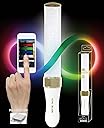
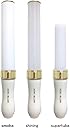


King Blade X10III Neo Shining
Product ID: 30126128
✨Luminescent Color Infinity
🔋AAA Battery Powered
🔧Custom Color Tuning
🌈 Illuminate Your World with X10III Neo Shining!
The X10III Neo Shining is a versatile luminescent device that allows users to create custom color patterns and choose from a vibrant palette of 15 default colors. Powered by 3 AAA batteries, it combines user-friendly design with endless creative possibilities, making it perfect for both personal and professional use.
| ASIN | B015E0NEAI |
| Additional Features | Color Tuning, Custom Luminescent Patterns |
| Age Range Description | Kid |
| Best Sellers Rank | #1,192,244 in Toys & Games ( See Top 100 in Toys & Games ) #12,590 in Kids' Electronics |
| Brand Name | ルイファン ジャパン(Ruifan Japan) |
| Collection Name | King Blade |
| Color | [Multi] |
| Customer Reviews | 4.6 out of 5 stars 36 Reviews |
| Edition | X10III |
| Educational Objective | Foster creative expression and imaginative play |
| Finish Type | Glossy |
| Global Trade Identification Number | 04562342921246 |
| Item Dimensions | 11.18 x 1.69 x 1.61 inches |
| Item Weight | 0.12 kg |
| Manufacturer | King blade |
| Manufacturer Maximum Age (MONTHS) | 144 |
| Manufacturer Minimum Age (MONTHS) | 144 |
| Manufacturer Part Number | KINGBLADEX10III/ƒVƒƒƒCƒjƒ“ƒO |
| Material Type | Resin |
| Model Name | King Blade X10III |
| Model Number | X10III |
| Model Series | King Blade |
| Number of Batteries | 1 AA batteries required. (included) |
| Number of Packs | 1 |
| Number of Pieces | 1 |
| Number of Players | 1 |
| Operation Mode | manual |
| Outer Material | Resin |
| Play Activity Location | Tabletop |
| Power Source | battery |
| Recommended Uses For Product | pretend_play, learning, creative_expression, tabletop_gaming, birthday_parties, christmas, halloween |
| Size | Large |
| Style | Modern |
| Supported Battery Types | 3 AAA batteries |
| Theme | Anime |
| Toy Figure Type | Interactive Gaming Figure |
| Unit Count | 1 Count |
| character | King Blade X10III |
A**R
How to use the Kingblade
Not sure if it was due to something else in my package, since I had this shipped with two other items, but it arrived 2 days early! I've had this happen to me before though, so maybe it's just a benefit of living in California? It seems like things ship here quite quickly. The Kingblade comes with a strap (which you can loop onto the blade yourself very quickly), a cord for syncing colors onto the blade through an app, and a paper containing instructions on how to use the blade. It also comes with batteries already installed, so you can just pull out the plastic flap in the battery cover and get going right away. You can also create a QR code for custom color sets, so this blade is a fantastic purchase for any fans who need to rep a certain color at a concert. The two advantages to the QR code function is speed (all you have to do is scan and sync!) and customizing the colors (i.e. creating your own hues rather than relying on the 15 default colors if you choose to create a color set manually through the blade itself). For the sake of completion, I'll cover both methods. So, for those of you who can't read Japanese, here's how to use the blade: * How to turn the blade on/off: There should be two buttons on the bottom of the blade - a smooth one, and ribbed one. Press and hold the smooth button until the blade lights up/turns off. * The default color order for the blade: Red-Blue-White-Orange-Green-Purple-Pink-Yellow-Light Green-Light Blue-Light Pink-Violet-Lime-Turquoise-Hot Pink. * How to cycle through colors: Press the smooth button to go forward, and the ribbed button to go backward. For example, if you started at red, pressing the smooth button twice would turn the blade blue then white, while pressing the ribbed button would turn the blade hot pink then turquoise. * How to install a custom color set manually through the blade 1. Make sure the blade is turned off. Hold down the ribbed button until it the blade starts flashing red (the first color in the default order). 2. Use the smooth button to cycle through the colors, and the ribbed button to commit it to memory. Note that because of the ribbed button being used this way, you can't use it to cycle backwards through the colors like you'd normally be able to - don't go through the colors too quickly, or you might have to cycle through them all to go back to the color you want! 3. I believe that you can store up to 30 color orders this way, but feel free to stop whenever you want. When you're done choosing, hold down the ribbed button until the blade turns off. You can turn on the blade to confirm that the order you just saved has been committed. * How to install a custom color set through the app 1. Download the Kingblade app onto your smartphone, and tap the button for the x10iii. You should see "My Blade List" at the top, and a locked set named "Default Blade". 2. Create a new color set. You can either do this manually through the "+ Create Blade" option on the bottom left, or by scanning a QR code (the lower right button). a. If you're making one manually, you'll be prompted to name the set immediately with a window titled "Blade Name". Type in whatever you want to name the set, and press the left button to continue (the right button is "Cancel"). Just note that whatever you name it will get "Blade" added to the end. For example, if you chose the name "Summer Concert", the set would be named "Summer Concert Blade". b. If you created a set through a QR code (meaning that someone arranged the colors beforehand), you can tap the name at the top of the screen when you're on that set's page to edit the set name, if you wish. c. Once you've set the Blade Name, you can start creating colors by tapping "Create Color" on the bottom right. You'll be directed to a list of the Kingblade's default 15 colors, and once you choose a base color, you can then adjust the color as needed using sliders. Press "Select" on the bottom left to confirm your choice, and you'll return to your custom set's main page. You can continue to add colors by repeating this step; if you're done, just stay on this page. d. Not sure about this, but I've heard that the bar on the right is something you need to pay attention to when creating your color. The red mark and caution sign indicates that you need to match that level (i.e. the yellow in the bar should match it exactly, and shouldn't be over or under it), or else the colors will come out all weird-looking. e. You can also set the color name by tapping the name at the top of the screen while you're editing the color - feel free to use either the character's/idol's name or the name of the color itself. Whatever name you choose automatically gets an asterisk added to it; I don't think there's anything you can do about that. 3. Turn on your blade by holding down the smooth button until the blade lights up. 4. Plug in the cord that came with the blade into your device's headphone jack. Make sure the volume is at max! I don't know exactly why, but after some trial-and-error, I found out that this was necessary in order for the syncing to work. 5. On the square plastic thing, there should be a small nub that looks like a clear LED light. Hold that firmly to the hole in the blade (the one above the battery cover's screw). 6. Press and hold both buttons on the bottom of the blade - the blade should now be blinking blue. This indicates that you've entered sync mode. 7. On your app, make sure you're on the page for your desired color set (which you should be, if you followed my instructions in step 2c). Tap the "Install" button on the bottom left. Your Kingblade should immediately stop flashing - this means that the installation has worked! Feel free to confirm that the set has gone through correctly by turning on your blade and cycling through the colors. * How to reset the blade to the default color order 1. While the blade is turned off, hold down the ribbed button until the blade starts flashing red. 2. Hold down the smooth button until the blade turns off. The next time that you turn the blade on, it should be in its default color order.
E**L
An idol fan must have
I bought this for the Aqours Hakodate DV and it was great! Don’t worry about paying more for official light sticks for specific shows and groups, this is a great light stick! I needed it pretty soon and it got shipped and delivered super fast! Setting up the colors was a little tricky at first, if you don’t know Japanese you can look up a guide online. The battery lasted the whole show and is still kicking. The light itself is really nice and pretty and it sparkles.
R**W
Decent light painting tool, but not "pure" color - hot spots and streaking.
I picked this up for light painting - the color is decently even, though brighter towards the base. The base houses the LED's, and these project into the wand. There's an insert in the wand that diffuses the light. It comes programmed with 16 colors, any there's an app you can use to create your own color sets. Unfortunately EVERYTHING is in Japanese - the wand instructions, app instructions, messages, etc. I was never able to get the app to send colors to the wand. Also, there's no instant off - you have to hold a button in for a few seconds to turn it off. For light painting, that's a real pain.It's also pretty cheaply made - a little better quality than something you'd pick up at Medieval Times or the circus. If you drop this thing on concrete, kiss it goodbye. It also looks like a sex toy, Gaudy colors, cheap plastic.... It's powered by 2 AAA batteries (included.) I've included some quickie long exposure shots so you see the light style. Note that it can have hot spots and streaks.
C**Y
Had trouble figuring out the app to change the colors ...
Had trouble figuring out the app to change the colors because all of the instructions and online tutorials are in Japanese -- had to have a friend at a live event help me out with the color programming. Otherwise, the blade is bright and works perfectly.
S**E
Not for noobs
Lack of proper instructions
R**T
my product came to me at the right time and ...
my product came to me at the right time and it was bright and shiny when it first turned on but since two weeks past the project started to malfunction and it wouldn't let me tune The colors and the Reds and greens started to all look the same
M**Z
Best purchase ever!
I was a bit skeptical about the app being able to make custom colors, but it actuallly works!!! This penlight is one of the best I’ve ever had, and since you can even change the colors to whatever you want, it’s a must buy for anyone that wants to reuse a penlight, rather then buying multiple!
J**O
Love it!
Love it! The colors are vibrant. The color scheme was easy to set up and link from my phone to the penlight. Great product!
Trustpilot
1 month ago
1 week ago